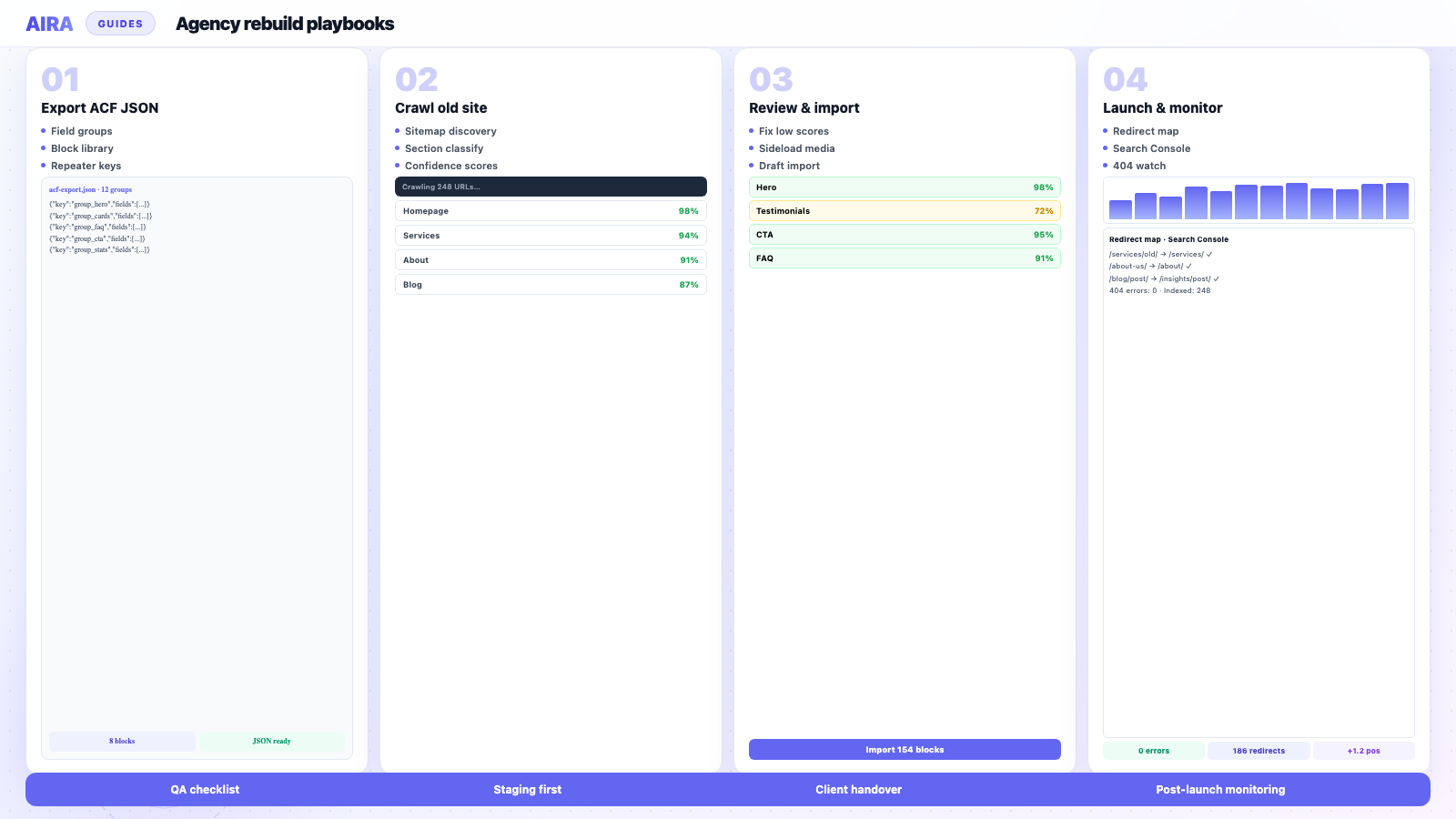
How to import an ACF Migrate bundle into WordPress
Step-by-step guide to importing a migration bundle with the ACF Migrate plugin — upload bundle.json, review blocks, fix flags, and publish drafts on your…
verifiedReviewed by Tommy Smith,Content Director
Install the ACF Migrate plugin on your new build, upload bundle.json, review blocks and confidence scores, import as drafts with sideloaded media and rewritten links, then QA before publish.
The crawl-and-classify stage produces a bundle — a structured JSON file describing every page, its blocks in order, field values, confidence scores and anything flagged for review. The ACF Migrate importer plugin is how that bundle becomes real WordPress drafts. This guide covers the import step that sits between migration mapped and ready for editors — including what to check, what breaks, and how to run a review pass that catches problems before launch.
What you need on the destination site
- arrow_rightWordPress 6.4+ with the block editor.
- arrow_rightACF Pro with the same block library registered as the site you crawled against.
- arrow_rightThe free ACF Migrate importer plugin installed (Tools → ACF Migrate).
- arrow_rightYour bundle.json file from the migration tool.
What is in the bundle
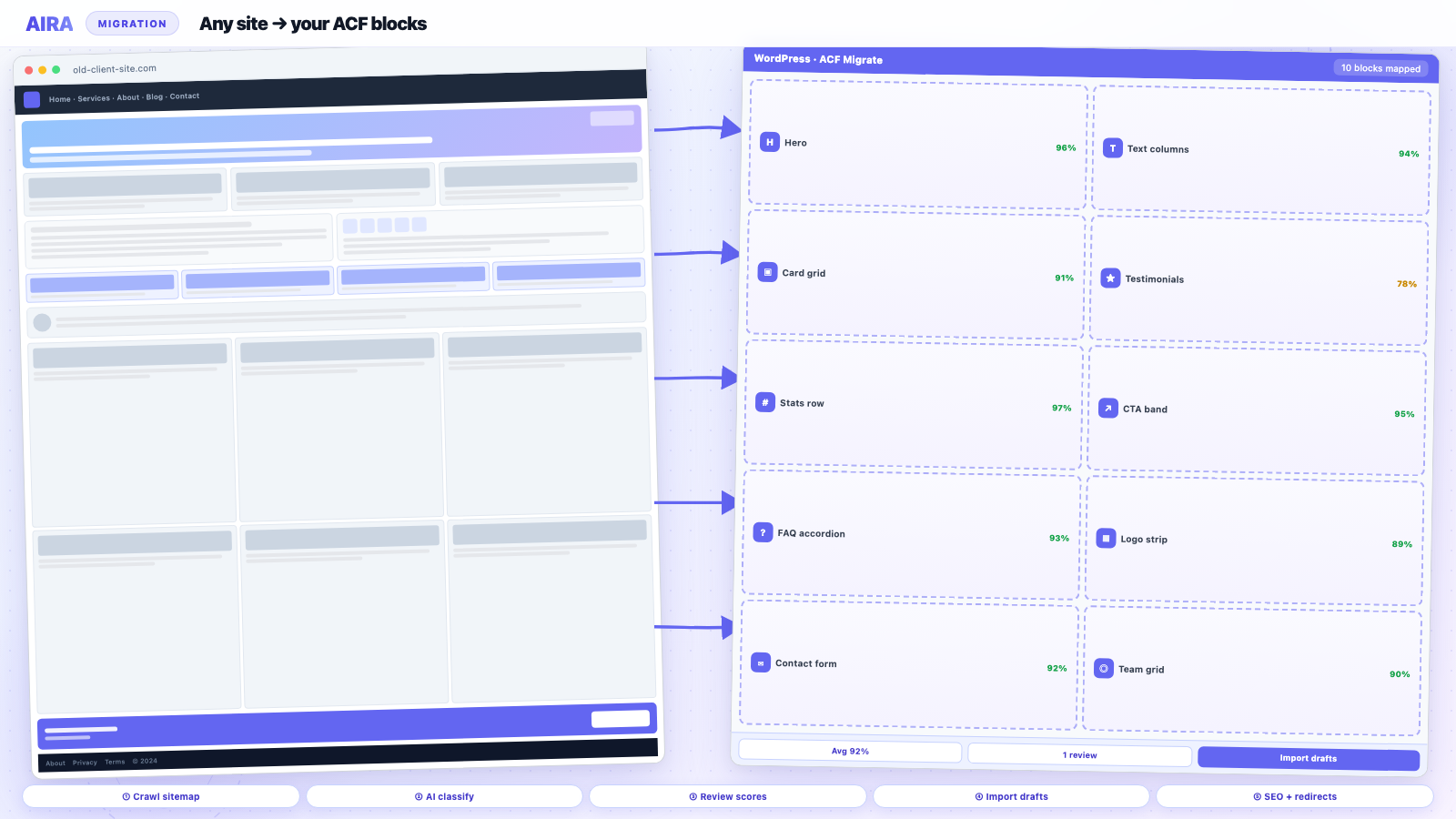
A bundle is not a WordPress export file. It is a migration-specific format: an ordered list of pages, each with an array of classified blocks. Every block has a type (matching your ACF block name), field values keyed to your ACF field keys, a confidence score, and optional review flags. Media URLs to sideload and internal links to rewrite are included. The importer turns this into Gutenberg block markup with ACF field values in post meta.
Import workflow
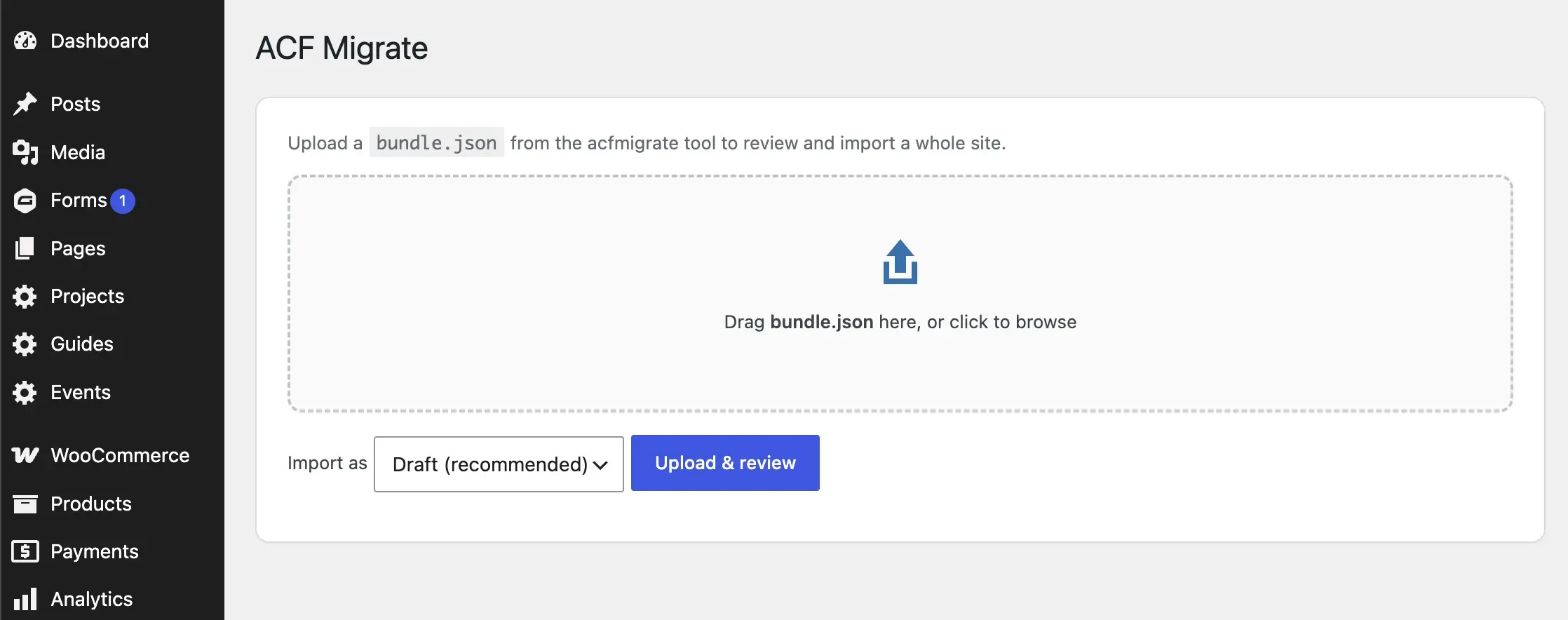
- 1Go to Tools → ACF Migrate in WordPress admin and upload bundle.json.
- 2Expand each page to see its blocks in order — headings, images, repeaters and confidence scores.
- 3Reassign any mis-classified block, reorder sections, or drop junk the crawler picked up.
- 4Choose Draft as the import status — nothing goes live until you have reviewed.
- 5Run the import. The plugin sideloads images, writes block field values, and creates draft pages.
Pre-import checklist
- 1ACF Pro active and licensed on staging.
- 2All blocks from the bundle spec appear in the Gutenberg inserter.
- 3acf-json synced — field keys match the bundle source export.
- 4Staging has write access to uploads directory for image sideloading.
- 5Old site still accessible for hotlinked images the sideload may fetch.
- 6Backup of staging database before bulk import.
Review pass: page by page
- 1Sort by lowest confidence score — fix these first.
- 2Check page title and slug match your URL map.
- 3Count repeater rows: team (6 people?), FAQs (12 items?), logos (8 brands?).
- 4Open in Gutenberg — blocks visible in editor, not empty placeholders.
- 5Preview front-end — compare side-by-side with old site on key pages.
- 6Spot-check image attachment IDs in ACF image fields vs hotlinked URLs.
Troubleshooting common import issues
| Symptom | Likely cause | Fix |
|---|---|---|
| Block empty in editor | Field key mismatch | Re-export ACF JSON; regenerate bundle |
| Image field shows URL not attachment | Sideload failed | Re-import page; check old site allows hotlink |
| Wrong block type assigned | Ambiguous source section | Reassign in review UI before import |
| Repeater has 1 row instead of 6 | Classifier merged rows | Manual fix or re-crawl with better spec |
| Import button greyed out | ACF Pro inactive or blocks not registered | Register blocks; confirm ACF Pro |
| Duplicate draft pages | Re-imported without cleanup | Delete previous drafts; fresh import |
| Internal links point at old domain | Link rewrite scope | Re-run search-replace or re-import with correct domain map |
Confidence scores explained
Every classified block carries a confidence score — how certain the classifier is that this section maps to this block type with these field values. Scores above 90% are usually publishable after a quick visual check. Scores between 70–90% need field-level verification. Below 70%, open the old page side-by-side and reassign or fix manually. The review UI lets you change block type and edit field values before import — use it.
After import
- 1Editors review and publish incrementally — do not bulk-publish unaudited drafts.
- 2Load redirect map if URLs changed.
- 3Verify Yoast or Rank Math metadata on key pages.
- 4Run full migration QA checklist on staging.
- 5Begin post-launch monitoring after cutover.
Common mistakes
- arrow_rightImporting to production before staging QA — errors become public.
- arrow_rightBulk publishing all drafts without editor review.
- arrow_rightIgnoring low-confidence blocks because there are many — they cluster on the homepage.
- arrow_rightChanged field groups between bundle generation and import.
- arrow_rightOld site taken offline before sideload completes — images 404.
- arrow_rightNo shortcode sweep after import — builder residue in unexpected places.
- arrow_rightSkipping SEO metadata verification — titles carry over only if your pipeline includes them.
Pre-bundle steps: migrate into ACF blocks. AIRA produces the bundle at pricing per page; the importer plugin is free in your WordPress admin. Agencies often run imports on a standard staging template with the block library pre-installed.
Phased import for large sites
A 100-page bundle does not need to import in one pass. Exclude pages in the review UI and import in batches: homepage and key landing pages first, service pages second, blog and utility pages third. Publish each batch after QA before importing the next. This keeps staging manageable and lets editors start reviewing while you continue importing.
Re-importing after mapping fixes
If you fix the mapping spec and regenerate the bundle, delete the previous import drafts before re-importing — otherwise you get duplicates. Alternatively, import into a fresh staging clone. For small fixes on individual pages, editing the draft in Gutenberg is faster than re-importing the whole bundle.
Editor handover after import
Imported drafts are structurally complete but not publish-ready. Train editors on: which blocks exist, what each field does, how repeaters work, and what to check before publishing (images, links, heading levels). A 30-minute walkthrough on the homepage draft prevents two weeks of support tickets about empty image fields.
Integration with SEO plugins
After import, verify SEO metadata on key pages. If your migration pipeline includes title and description data, confirm it landed in Yoast or Rank Math. If not, carry over metadata from the old site manually or via a separate SEO migration step. Empty meta descriptions on imported drafts are a common launch-day surprise.
What the importer does not handle
- arrow_rightTheme template parts — headers, footers, archive layouts.
- arrow_rightMenu structure and menu item URLs.
- arrow_rightWidget areas and sidebar content.
- arrow_rightPlugin settings — forms, SEO, caching, analytics.
- arrow_rightUser accounts and roles.
- arrow_rightWooCommerce product data (unless in crawl scope).
- arrow_rightRedirect rules — import separately from redirect map CSV.
Staging vs production import
Always import on staging first. QA every draft, fix field issues, get client sign-off, then either push staging to production via your deploy pipeline or re-import the validated bundle on production. Never skip staging QA because the bundle 'looked fine' in the review UI — the review UI does not show how Gutenberg renders repeaters, how images display at responsive breakpoints, or how internal links behave in context.
Import performance on large bundles
A 200-page bundle with heavy image sideloading can take 30–60 minutes to import. PHP max execution time and memory limits matter. Increase limits on staging for bulk import if needed. Image sideloading is the slowest step — it fetches each image from the old site. Keep the old site accessible and unblocked during import. If the old host rate-limits requests, sideloads fail silently and you get URL strings instead of attachment IDs.
Complete import-to-launch checklist
- 1Import bundle as drafts on staging.
- 2Review low-confidence pages; fix repeaters and images.
- 3Client sign-off on key pages.
- 4Publish approved pages incrementally.
- 5Load redirect map from migration tool.
- 6Verify Yoast titles and descriptions.
- 7Run migration QA checklist.
- 8Push to production; begin post-launch monitoring.
When import is not enough
The bundle covers page-body content mapped to ACF blocks. It does not replace dev work on navigation, forms, search functionality, membership areas, or custom integrations. Scope those separately in your statement of work. Clients sometimes assume 'migration' means everything — clarify that the bundle is content into blocks, not a full site clone.
Validating an import before client review
Before sending staging to the client, run your own pass: open five random drafts in Gutenberg, confirm blocks are populated, preview on front-end, click every internal link, check mobile layout on two pages. Fix obvious issues before the client sees it. First impressions of a migration staging site stick — if the client sees empty hero images on launch day, they lose confidence in the whole rebuild even if everything else is perfect.
Bundle format and versioning
Each bundle is tied to a specific ACF JSON export version and crawl timestamp. Store the bundle file, the JSON export, and the crawl date together in the project folder. If you need to re-import six months later, you will know exactly which field keys the bundle expects. Regenerate if the block library has changed structurally since the original crawl.
The import step is the shortest phase of a migration if the bundle was reviewed properly. Most project time sits in block development, crawl review, and QA — not in clicking Import. Treat the importer as the reliable final mile, not the place to fix mapping mistakes you skipped in review.
Keep the old site live and accessible until import and image sideloading are complete. Taking the source offline early is one of the most common causes of broken image fields and failed imports — the plugin cannot fetch what no longer exists.
The ACF Migrate plugin is the free WordPress-side step in the AIRA pipeline. Credits are spent at bundle commit in AIRA; import itself is unlimited. That split keeps staging iteration cheap while you fix review issues. Re-import as many times as you need on staging without spending additional credits.
The bundle is a draft factory, not a launch button. The review pass is where migrations succeed or fail.
Frequently asked questions
Does importing the bundle cost extra credits?expand_more
With AIRA, credits are spent when you commit and download the bundle — one credit per page. Importing the bundle into WordPress via the ACF Migrate plugin is free and unlimited.
Can I import the same bundle twice?expand_more
You can, but it may create duplicate draft pages. Delete previous import drafts before re-importing, or import into a fresh staging environment if you are iterating on the mapping.
Can I import only some pages from the bundle?expand_more
Review UI lets you exclude pages before running the import. Useful when you are phasing a large site — migrate and publish the homepage and top services first, then batch the rest.
What WordPress version does the importer need?expand_more
WordPress 6.4 or later with the block editor enabled. ACF Pro must be active. The importer creates native Gutenberg blocks — not Classic Editor content.
How do I install the ACF Migrate plugin?expand_more
Download from your AIRA account or the plugin link provided after bundle generation. Install via Plugins → Add New → Upload Plugin on your staging site. Activate and find it under Tools → ACF Migrate.
Why are my image fields showing URLs instead of attachments?expand_more
Sideloading failed — usually because the old site blocked hotlinking, the image URL 404s, or staging lacks write permissions on wp-content/uploads. Fix the source access and re-import the affected pages.
Can I edit field values after import?expand_more
Yes. Imported pages are standard Gutenberg drafts with ACF blocks. Edit in the block editor as normal. You can also reassign block types in the review UI before import if you catch issues early.
Does the importer handle SEO metadata?expand_more
The bundle can include title and meta description data depending on your migration pipeline. Verify in Yoast or Rank Math after import — do not assume metadata carried over without checking.
What import status should I use?expand_more
Always Draft for the first import pass. Publish incrementally after QA. Only use Publish status when you are re-importing a small fix and have already QA'd the site.
How do I handle pages not in the bundle?expand_more
Pages not crawled are not in the bundle. Check your sitemap scope. Add missing URLs to the crawl and regenerate. Or migrate manually if it is a one-off page.
Can I import on local development?expand_more
Yes — useful for testing the block library and import flow. Image sideloading needs the old site accessible from your local machine. Match field keys between local and staging.

Ryan Hale
Head of Front End Development
Ryan Hale is Head of Front End Development at AIRA, where he leads the team building the engine that migrates WordPress sites into native ACF blocks. He has spent more than a decade building and rebuilding WordPress sites for agencies, with deep, hands-on expertise in Advanced Custom Fields, Gutenberg block development, and large-scale content migrations that protect search rankings. He writes about ACF, moving off page builders like Elementor and Divi, and the practical craft of shipping fast, maintainable WordPress rebuilds.
Reviewed to our editorial guidelines.