ACF JSON export explained: what it is and why it matters
What an ACF JSON export contains, local JSON vs manual export, field keys vs names, and why the export is the foundation of every accurate WordPress content…
verifiedReviewed by Tommy Smith,Content Director
An ACF JSON export describes your field groups, field keys, types, and location rules. WordPress stores values against field keys — not names. A current, complete export is non-negotiable before any content migration or import.
If you have ever migrated content into Advanced Custom Fields, you have met the ACF JSON export. It is a plain JSON description of your field groups — and it is the difference between a migration that lands content in the right fields and one that scatters it across empty meta keys. Here is what is actually in it, how to produce one reliably, and the mistakes that cause imports to silently fail.
What the export contains
- arrow_rightField groups: the containers ACF attaches to a block, page template or post type.
- arrow_rightField keys: stable identifiers like field_64a1f… that WordPress stores values against.
- arrow_rightField types: text, image, repeater, flexible content, relationship, and so on.
- arrow_rightRepeater and flexible-content structures: the nested sub-fields that make composite blocks possible.
- arrow_rightLocation rules: where each group appears (e.g. on a specific ACF block).
Field keys vs field names
Every ACF field has two identifiers. The field name is human-readable — hero_heading, card_title, team_photo. The field key is a stable machine ID — field_64a1f2b3c4d5e. WordPress post meta stores values against the key. If your migration tool writes to hero_heading instead of field_64a1f2b3c4d5e, the value exists in the database but ACF will not display it in the editor. This is the single most common import failure we see.
| Identifier | Example | Used by | Safe to rename? |
|---|---|---|---|
| Field name | hero_heading | Developers in templates (get_field) | Yes, with care |
| Field key | field_64a1f2b3c4d5e | WordPress post meta storage | No — breaks existing data |
| Field group key | group_64a1f… | ACF group identity | cancel |
| Block name | acf/hero | Gutenberg block registration | No after migration starts |
Local JSON vs manual export
ACF can automatically write field-group definitions to an acf-json folder in your theme (local JSON). These files are the same format you would get from a manual export via ACF → Field Groups → Export As JSON. Either works as the source of truth for a migration — local JSON just means you do not have to remember to export.
Setting up local JSON
- 1Create an acf-json folder in your theme or blocks plugin directory.
- 2ACF automatically saves field group JSON on every field group save in admin.
- 3Commit the JSON files to Git — they are your version-controlled field definitions.
- 4On deploy to staging/production, ACF shows a Sync available notice — click Sync.
- 5Never edit JSON files by hand unless you know exactly what you are doing.
What a JSON file looks like (conceptually)
Each JSON file represents one field group. At the top level you will see the group key, title, and location rules. Nested inside are fields arrays — each field has key, name, type, and label. Repeaters contain sub_fields arrays with their own keys. Flexible content contains layouts, each with sub_fields. Migration tools parse this tree to know which keys to write and what data types to expect.
Why it is the foundation of a migration
A migration tool can only place content into fields that exist. The export defines that universe. Feed it a current, complete export and the mapping is accurate; feed it a stale one and content lands in the wrong place — or nowhere. If you add blocks or fields after exporting, re-export and regenerate your mapping spec.
Export workflow for migrations
- 1Register all ACF blocks on the destination theme or blocks plugin.
- 2Create field groups with location rules pointing at each block.
- 3Fill in test content for every field type including repeaters.
- 4Save all field groups — confirm local JSON files updated.
- 5Alternatively: ACF → Field Groups → select all → Export as JSON.
- 6Upload the export to your migration tool before crawling.
- 7Do not change field keys after this point without regenerating the bundle.
Environment sync checklist
- 1Same ACF Pro version on local, staging, and production.
- 2Same block registration code deployed to all environments.
- 3acf-json folder committed to Git and deployed with the theme.
- 4Sync clicked on staging after deploy — field groups match JSON.
- 5Spot-check: insert block, fill repeater, save, reload — values persist.
- 6Export taken from the environment that matches where import will run.
Common mistakes
- arrow_rightExporting from production but importing to staging with different field keys — fields appear empty.
- arrow_rightAdding a new repeater sub-field after the crawl — old bundle does not know the new key.
- arrow_rightDuplicating a field group in ACF admin — duplicates get new keys; old content orphaned.
- arrow_rightField group exists in database but not in acf-json — export is incomplete.
- arrow_rightUsing field names in custom import scripts instead of field keys.
- arrow_rightForgetting to sync JSON on staging after Git deploy.
- arrow_rightExporting only some field groups — migration tool cannot map to blocks without groups.
How migration tools use the export
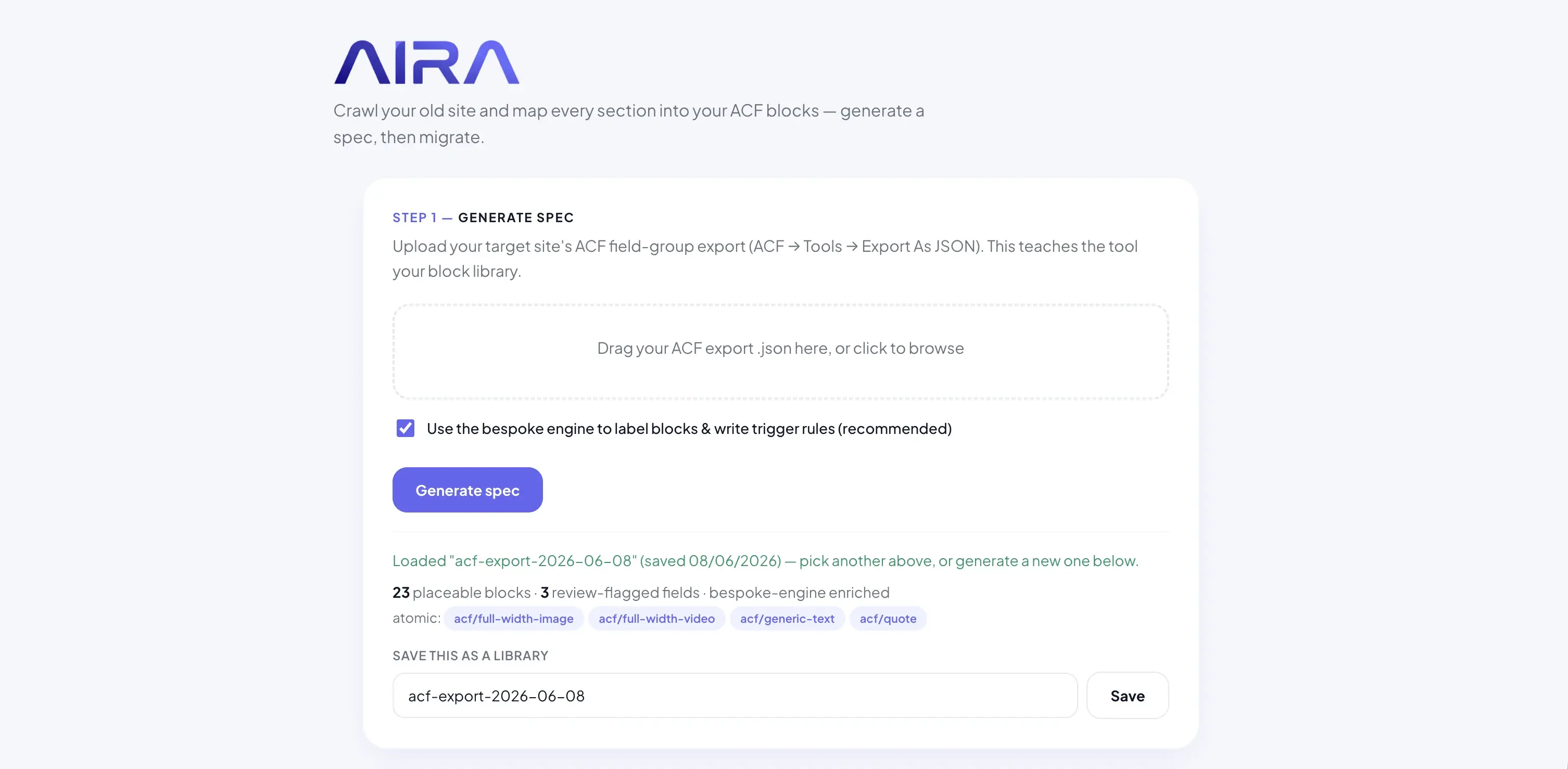
Tools like AIRA read your JSON export to learn block names, field keys, field types, and repeater structures. The classifier matches rendered page sections to block types, then fills fields using the keys from the export. The importer plugin writes values to post meta using those same keys. If the chain breaks at any point — wrong key, missing field, renamed block — you get empty blocks in Gutenberg.
See how to register ACF blocks for the registration step, import an ACF Migrate bundle for the import step, and how to migrate into ACF blocks for the full workflow.
Syncing across environments
The export is only as good as the environment it came from. A common agency workflow: develop blocks on local with local JSON in Git, deploy to staging via CI, click Sync in ACF admin on staging, run the migration crawl against the old live site, generate the bundle, import on staging, QA, then deploy to production with the same JSON files. If production has different field keys than staging — because someone edited field groups in production admin without syncing JSON — imports fail silently.
Repeater and nested field migration
Repeaters are where JSON structure matters most. A team block with a repeater containing name, role, photo, and bio sub-fields has five field keys per row plus the repeater key itself. The migration tool must write row_0_name, row_0_role, etc. using the exact sub-field keys from the export. If your export shows sub-field key field_abc123 for team_photo, the importer must write to field_abc123 — not team_photo, not photo, not image.
Testing repeaters before migration
- 1Insert the block in Gutenberg on staging.
- 2Add 3+ repeater rows with every sub-field filled.
- 3Save, reload the editor — all rows and values persist.
- 4View front-end — all rows render correctly.
- 5Export JSON and confirm sub-field keys match what you see in the file.
- 6Only then start the migration crawl.
JSON export and version control
Treat acf-json/ like source code. Pull requests that change field groups should show JSON diffs. Tag releases before migration crawls so you can trace which export version a bundle was built from. If a client requests a new field mid-migration, add it, re-export, regenerate the bundle, and re-import affected pages — do not patch field values manually in the database.
Troubleshooting sync issues
| Symptom | Cause | Fix |
|---|---|---|
| Sync available banner in ACF | JSON differs from database | Click Sync on staging after deploy |
| Field group missing on staging | JSON not deployed | Check Git deploy includes acf-json/ |
| Two versions of same group | Edited in admin and JSON separately | Delete duplicate; sync from JSON |
| Import writes but editor empty | Key mismatch | Compare keys in export vs wp_postmeta |
ACF JSON and block registration together
The JSON export describes fields. Block registration describes which blocks exist in Gutenberg. Both must align. A field group with location rule Block == acf/hero only appears when the acf/hero block is registered via acf_register_block_type(). If you export JSON for a hero block but forget to register the block on staging, the fields exist in ACF admin but the block does not appear in the inserter — and the migration importer has nowhere to write. See how to register ACF blocks for the registration step that must precede every export.
Multiple exports for complex sites
Large sites may have field groups beyond blocks — options pages, CPT fields, taxonomy fields. Export only the block-related field groups for migration tooling. Including unrelated groups adds noise and slows classification. If your team block fields live on a Team CPT rather than in a page block, that is a separate migration path — WP-CLI or WXR — not an ACF block bundle import.
Security and sharing exports
JSON exports contain field structure, not content values. They are safe to share with migration tools and staging environments. They do not contain passwords, user data, or post content. Still treat them as intellectual property — your block library design is in those files. Do not commit client-specific field groups to a public Git repo without removing client-identifying group titles if that matters for your workflow.
Quick reference: export checklist
- 1All blocks registered and visible in inserter.
- 2All field groups saved with correct location rules.
- 3Local JSON files updated in acf-json/ (check file timestamps).
- 4Test content saved and persisting for every block type.
- 5Export downloaded or JSON folder committed to Git.
- 6Export uploaded to migration tool before crawl starts.
- 7Freeze field structure until bundle is imported and QA'd.
The JSON export is your migration contract. Change it after the crawl and you are renegotiating with nothing to show the importer.
Frequently asked questions
Where do I find the ACF JSON export?expand_more
In WordPress admin, go to ACF → Field Groups, tick the groups you want, and choose Export → Export As JSON. If your theme uses local JSON, the files already live in an acf-json folder.
What is the difference between field keys and field names?expand_more
Field names are human-readable (e.g. hero_heading); field keys are stable IDs (e.g. field_64a1f…). WordPress stores values against the key, so migrations must target the exact keys in your export.
Can I edit ACF JSON files manually?expand_more
You can, but it is risky. A syntax error breaks the sync. Changing a field key manually orphans existing content. Use the ACF admin UI for changes and let local JSON regenerate.
What happens if I rename a field in ACF?expand_more
Renaming the field name (label/slug) is usually safe — the key stays the same. Creating a new field with a new name generates a new key. Old meta under the old key will not appear in the new field.
Do I need to export after every field change?expand_more
If using local JSON, the file updates automatically on save. If you already ran a migration crawl, regenerate the bundle after any structural change — new fields, new repeaters, renamed blocks.
How do repeaters appear in the JSON export?expand_more
A repeater field has type repeater and a sub_fields array. Each sub-field has its own key. Migration tools must write repeater row counts and each sub-field value per row using those keys.
What is flexible content in the export?expand_more
Flexible content fields contain multiple layouts, each with sub_fields. More complex than discrete blocks. Most agency migrations prefer discrete ACF blocks over flexible content for easier mapping.
Can I use one export across multiple client sites?expand_more
Yes, if they share the same block library and field keys. Agencies often maintain a standard acf-json folder deployed across clients. Client-specific fields need separate exports.
Why do imported blocks show empty fields?expand_more
Almost always a field key mismatch. Compare the keys in your export with the keys on the destination site. Re-sync local JSON or re-export from the correct environment.
Does the export include field values?expand_more
No. The export contains field definitions only — structure, keys, types, location rules. Content values live in post meta and are created by the migration import, not the export.
Should I store acf-json in the theme or a plugin?expand_more
A dedicated blocks plugin is often better for client handover — the library survives theme changes. Either works as long as the plugin is active before import.

Ryan Hale
Head of Front End Development
Ryan Hale is Head of Front End Development at AIRA, where he leads the team building the engine that migrates WordPress sites into native ACF blocks. He has spent more than a decade building and rebuilding WordPress sites for agencies, with deep, hands-on expertise in Advanced Custom Fields, Gutenberg block development, and large-scale content migrations that protect search rankings. He writes about ACF, moving off page builders like Elementor and Divi, and the practical craft of shipping fast, maintainable WordPress rebuilds.
Reviewed to our editorial guidelines.