How to copy a page from one WordPress site to another
How to copy a page from one WordPress site to another — WXR export, clone plugins, copy-paste, manual rebuild and crawl-and-map. Pros, cons and when each…
verifiedReviewed by Tommy Smith,Content Director
Copy a WordPress page via Tools → Export/Import (WXR) for plain content, clone plugins when both sites share the same stack, or crawl-and-map into ACF blocks when structures differ. Always verify images and internal links after any method.
Copying a single page between two WordPress sites sounds trivial until images 404, internal links still point at the old domain, and a page-builder layout arrives as a wall of shortcodes. The right method depends on how similar the two sites are — same theme and plugins, or completely different block libraries. Here are the five approaches agencies actually use, from quickest to most robust.
1. WordPress native export/import (WXR)
Tools → Export on the source site creates a WXR (WordPress eXtended RSS) XML file. Import it on the destination with the WordPress Importer plugin. It is free, built in, and the default for standard posts and pages between sites you control.
- arrow_rightGood for: plain posts and pages, bulk transfers, Classic Editor content.
- arrow_rightProcess: export by author or content type, import with 'download and import file attachments' checked.
- arrow_rightWatch out: attachments often import partially — hotlink blocking and timeouts are common.
- arrow_rightPage-builder and ACF block layouts frequently break — shortcodes and field keys may not exist on the destination.
- arrow_rightInternal links keep absolute URLs from the source domain until you search-replace.
2. Clone and duplicate plugins
Duplicate Post, Yoast Duplicate Post, or migration plugins like All-in-One WP Migration can copy individual pages or push them between environments. Useful when you are cloning a known template across a multisite or agency portfolio.
- arrow_rightWorks best when both sites run the same theme, page builder and ACF field groups.
- arrow_rightAssumes plugin parity — missing builder on destination means shortcodes render as raw text.
- arrow_rightSome tools push database rows directly; risky on production without staging first.
- arrow_rightGood for templated landing pages you reuse across client sites with identical stacks.
3. Copy-paste in the block editor
Select all in the source editor, paste into the destination. Fine for a paragraph of body copy; painful for anything with structure.
- arrow_rightLoses block structure for complex layouts — columns, nested groups and custom blocks flatten.
- arrow_rightImages paste as hotlinked URLs, not Media Library attachments.
- arrow_rightLinks retain source paths and domains.
- arrow_rightOnly acceptable for simple text content or emergency one-offs.
4. Rebuild by hand
Open the old page and the new editor side by side; re-enter content field by field into the destination blocks. The most reliable and the slowest.
- arrow_rightAppropriate for one or two high-value pages when automation is not set up.
- arrow_rightDoes not scale — a 40-page site is a week of developer time.
- arrow_rightHuman error creeps in: wrong heading levels, missed CTAs, untransferred alt text.
- arrow_rightStill requires manual image upload and link updates.
For volume, switch to crawl-and-map. For timeline context, see how long a rebuild takes.
5. Crawl and map into structured blocks
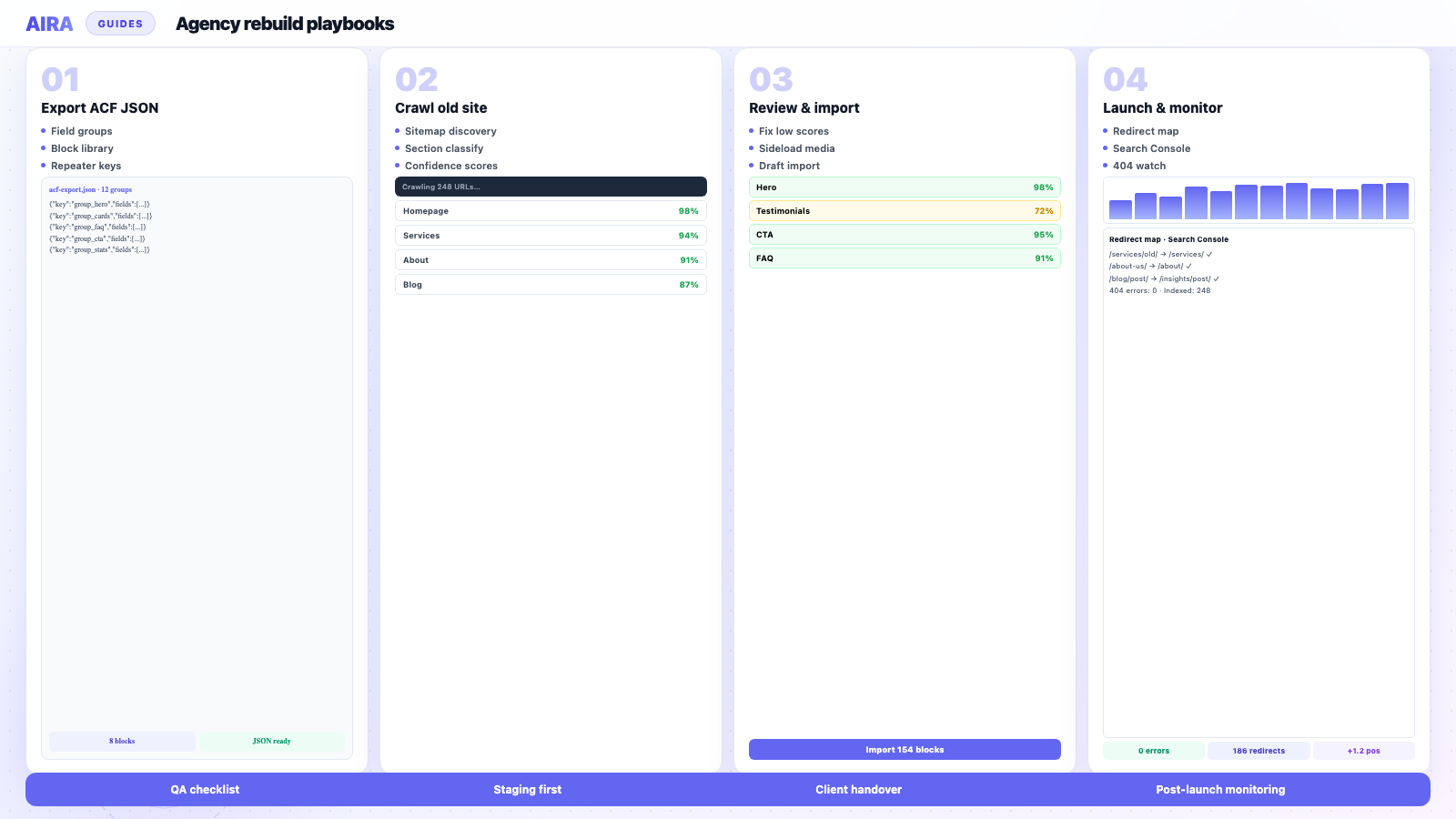
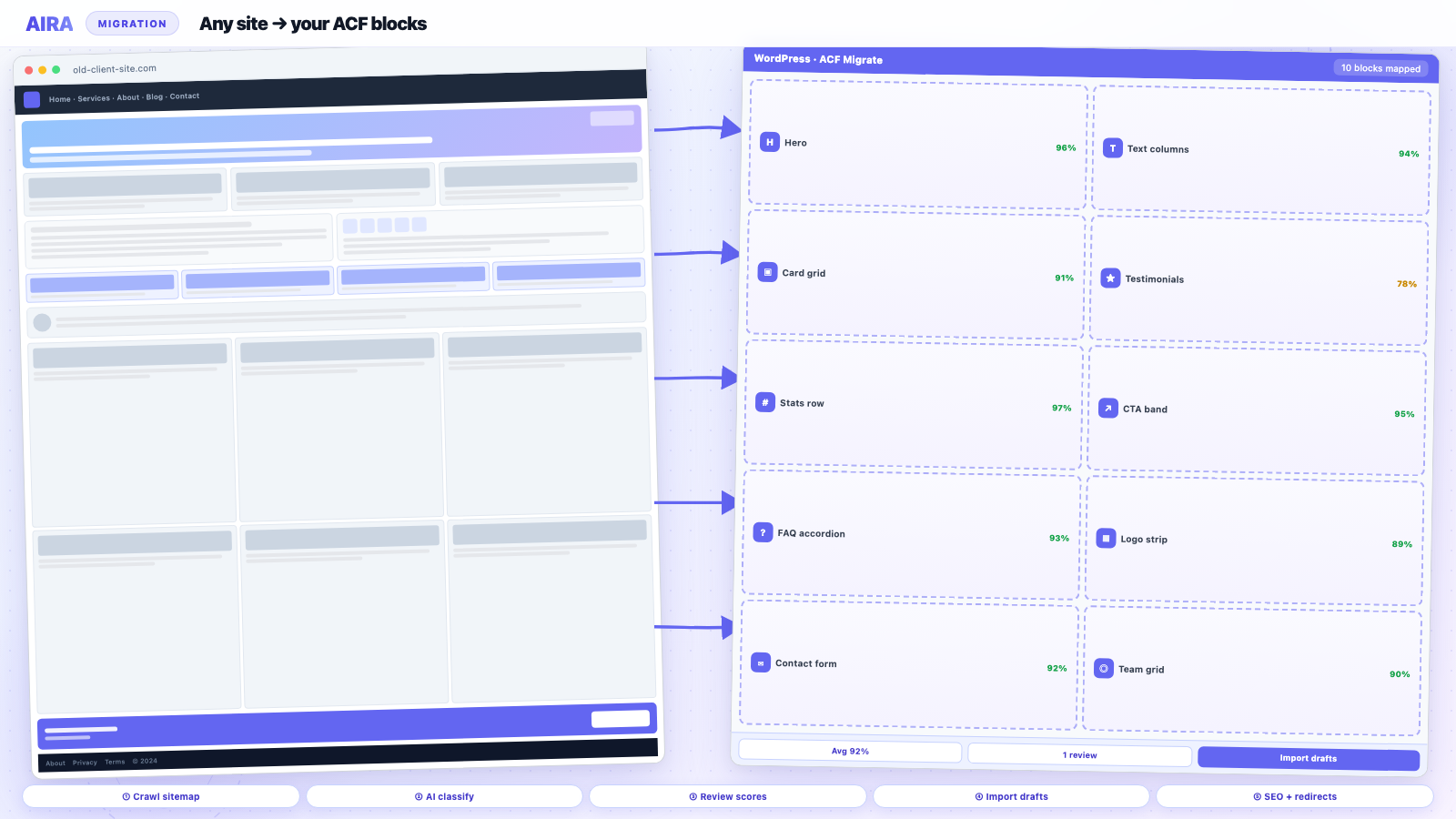
When the destination uses ACF blocks — or when the two sites have different structures — read the source page as a visitor sees it and map each section into the destination block library. Images sideload; links rewrite; metadata can travel with the bundle.
- 1Export destination ACF field groups as JSON.
- 2Crawl the source page URL (rendered HTML).
- 3Classify each section: hero, features, testimonial, FAQ, etc.
- 4Review confidence scores; fix ambiguous sections.
- 5Import as a draft on the destination via ACF Migrate or your pipeline.
- 6Verify images, links and heading hierarchy before publish.
That is the workflow AIRA automates — and it scales from one page to a full sitemap. Pair with the WordPress migration checklist when the 'one page' copy becomes a full rebuild.
Choosing the right method
| Scenario | Best method | Why |
|---|---|---|
| Same theme + builder, one template page | Clone plugin | Structure is identical |
| Plain blog post, few images | WXR export/import | Fast, good enough |
| Elementor source → ACF destination | Crawl and map | WXR preserves shortcodes, not layout |
| Different domains, SEO-sensitive page | Crawl and map + redirect plan | Control links and metadata |
| Emergency text-only snippet | Copy-paste | Accept the cleanup cost |
What breaks on every page copy
Regardless of method, two failures appear in almost every page transfer unless you check explicitly.
Images
WordPress stores images as attachments with post IDs. Copying content without attachments leaves broken src attributes or hotlinks to the old host. After import, confirm each image exists in the new Media Library and re-upload anything that 404s. See broken images after migration.
Internal and absolute links
Button blocks, ACF link fields and inline anchors often store full URLs with the old domain. Search-replace on the database helps for simple swaps but can break serialised data if string lengths change. Rewrite links during structured import when possible.
Copying one page vs migrating a whole site
One page is a method choice. Fifty pages is a project — inventory, redirects, SEO preservation and QA. The moment you are copying more than a handful of pages, run the full staging workflow and treat it as a migration, not a clipboard exercise.
Builder-specific guides — Elementor, Divi, WPBakery, Avada, Bricks — all assume crawl-and-map at scale. The same logic applies to a single page when the destination is ACF blocks.
WXR import step by step
- 1Source: Tools → Export → Pages (or All content for bulk).
- 2Download WXR file; note export date for change control.
- 3Destination: install WordPress Importer if not present.
- 4Import → upload file → assign authors → tick download attachments.
- 5After import: Settings → Permalinks → Save (flush rewrites).
- 6Search-replace old domain on staging if paths changed.
- 7Open page in editor; confirm blocks or shortcodes render.
Multisite and network copies
Copying between sites on a WordPress network adds site ID and domain mapping concerns. Clone plugins may work within the network; cross-network still needs export or crawl-and-map. Always verify upload URLs use the destination site's domain after copy — multisite upload paths catch agencies out.
Legal and compliance pages
Privacy policy, terms and cookie pages are often stale but legally required. Copy the text accurately — do not let AI rewrite legal copy during migration. Note revision date in content and get client sign-off if jurisdiction or company details changed since the old page was written.
Troubleshooting failed page copies
When a copied page looks wrong on arrival, work through this order before re-importing:
- 1Media Library — are images attached or hotlinked?
- 2Active plugins — is the page builder active on destination?
- 3ACF field groups — do field keys exist on destination?
- 4Post status — draft vs publish affecting shortcode render in preview?
- 5User permissions — author IDs mapped on import?
- 6Charset — em dashes and smart quotes corrupted in XML?
If three or more items fail, WXR was the wrong method. Switch to crawl-and-map for that page rather than fighting shortcodes.
ACF and custom fields on single-page copy
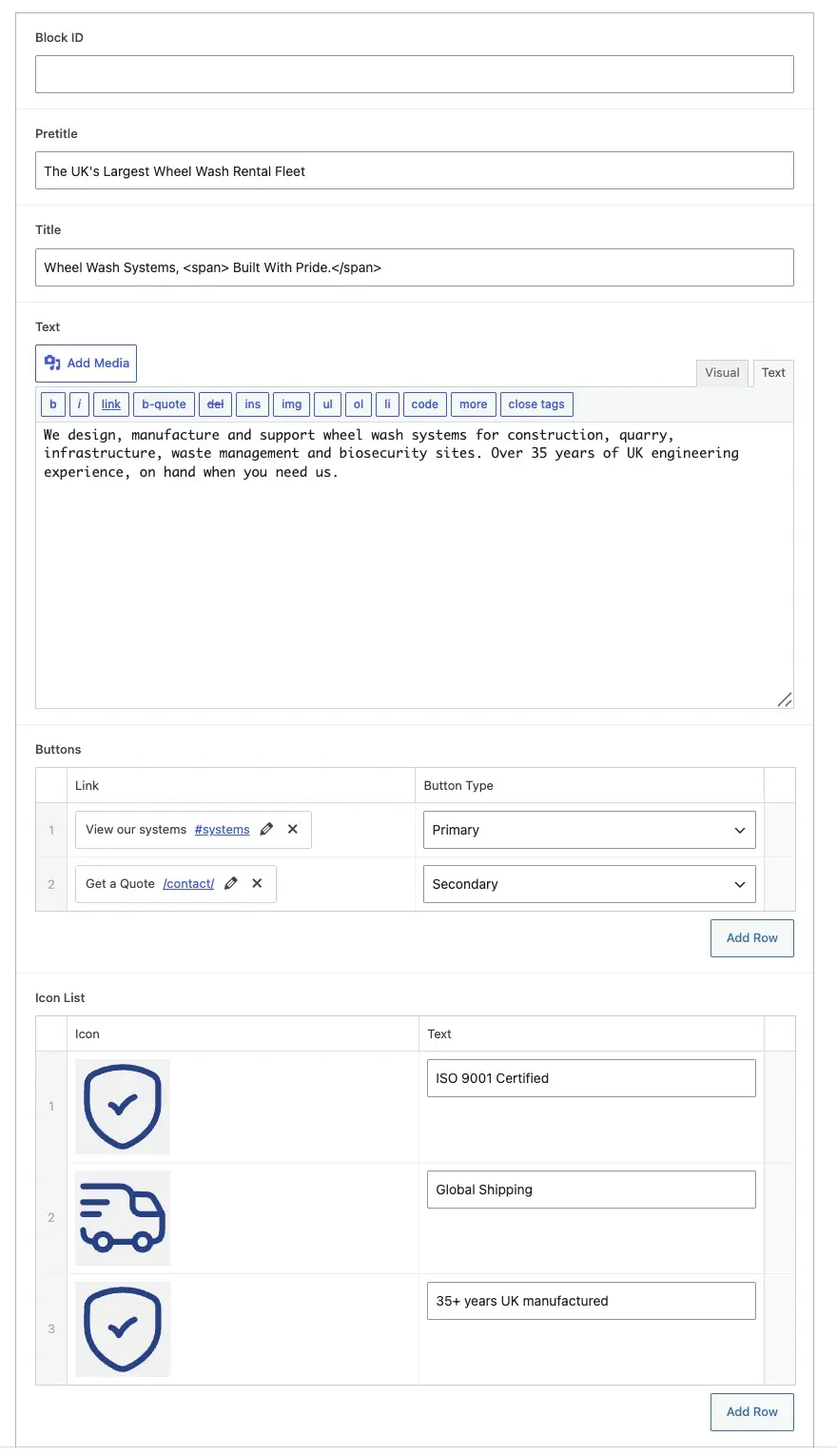
When the page uses ACF fields attached to a page template — not blocks in content — WXR may import post meta if field groups exist on both sites with identical field keys. If keys differ, meta imports invisibly but does not render. Export field groups from source, import on destination before page import, then verify each field in the editor. For ACF blocks in post content, both sites need the same block registration and JSON. Single-page copy between mismatched stacks is exactly why crawl-and-map exists: it targets the destination schema, not the source schema.
Agency workflow for repeated page copies
Franchise and multi-location clients often need the same template copied with local NAP swaps. Build once in ACF blocks on the hub site, export block patterns, then crawl-and-map each location's old page into the template rather than hand-copying. Maintain a spreadsheet of source URL, destination slug, and copy status. For one-off copies, WXR is fine; for ten or more structurally similar pages, pipeline investment pays back on page three.
Security when copying between environments
Copying production to staging for page experiments is standard; copying staging to production without QA is not. Sanitise user data, form entries and API keys when moving databases. Page content copy via WXR does not include wp_users — but may include author slugs that leak internal email patterns in bylines.
When copying from a client site you do not host, get written permission before crawling or exporting. Their robots.txt does not override contract scope. Rate-limit automated crawls on shared hosting so you do not trigger their host's abuse alerts.
Scaling from one page to full site migration
The fifth page copy is the decision point. If you are still fighting WXR attachments and shortcode debris, stop copying pages individually and run a sitemap crawl into ACF blocks. Incremental page copy made sense for an emergency single landing page; it becomes technical debt when the client asks for the rest of the site next month. Document which pages were WXR-copied so the full migration pass does not assume uniform source quality. Mixed import methods on one destination confuse QA — one page has clean blocks, the next has orphaned Elementor shortcodes from an earlier experiment.
Record the copy method in the page excerpt or an internal custom field so future developers know whether WXR, clone plugin or crawl-and-map produced the current markup.
Quick reference
One page, same stack: duplicate plugin. One page, plain content: WXR. One page, different builders: crawl-and-map. Many pages: always crawl-and-map. When in doubt, verify images and links — that rule survives every method.
Frequently asked questions
What is the easiest way to copy a WordPress page to another site?expand_more
For standard posts and pages with simple formatting, Tools → Export and Import (WXR) is easiest. For layout-heavy or page-builder content, or when the two sites use different block structures, crawl-and-map into the destination blocks gives a cleaner result.
Why do images not come across when I copy a page?expand_more
The importer must re-download each image into the new Media Library. That step often fails partially — especially if the source host blocks hotlinking or times out on large files. Always verify attachments after import.
Can I copy an Elementor page to a site without Elementor?expand_more
Not with WXR alone — you will import shortcodes that do not render. Crawl the rendered front-end page and map sections into the destination block library instead.
Do duplicate page plugins work across different domains?expand_more
Some migration plugins push content between sites, but they assume matching themes, builders and plugins. Different stacks need crawl-and-map or manual rebuild.
Will copying a page copy SEO metadata?expand_more
WXR can include some post meta if plugins align. Yoast and Rank Math fields often need explicit migration — see [preserve Yoast SEO during migration](/blog/preserve-yoast-seo-during-wordpress-migration).
How do I fix internal links after copying a page?expand_more
Search-replace old domain and path on staging, then crawl for links still hitting redirects or 404s. ACF link fields and button URLs are easy to miss — check block fields, not just post content.
Is copy-paste ever acceptable?expand_more
For a short text block or emergency fix, yes. For a full marketing page with images, CTAs and structure, no — you will spend longer fixing than you saved.
Can I copy a page from staging to production on the same site?expand_more
Yes — duplicate plugins or export/import between environments works when the stack is identical. Still verify URLs in links and buttons point at production paths after push.
How does crawl-and-map differ from WXR import?expand_more
WXR moves database rows. Crawl-and-map reads what visitors see, classifies sections into your block types, sideloads media and rewrites links. It is built for different source and destination structures.
What should I check before telling a client the page is copied?expand_more
Images in Media Library, internal links resolve with 200 status, heading hierarchy intact, forms and CTAs work, mobile layout acceptable, and SEO title/description present if the page ranks.

Ryan Hale
Head of Front End Development
Ryan Hale is Head of Front End Development at AIRA, where he leads the team building the engine that migrates WordPress sites into native ACF blocks. He has spent more than a decade building and rebuilding WordPress sites for agencies, with deep, hands-on expertise in Advanced Custom Fields, Gutenberg block development, and large-scale content migrations that protect search rankings. He writes about ACF, moving off page builders like Elementor and Divi, and the practical craft of shipping fast, maintainable WordPress rebuilds.
Reviewed to our editorial guidelines.