Broken images after a WordPress migration: causes and fixes
Images missing or broken after a WordPress migration? The five usual causes — hotlinking, wrong URLs, failed imports, CDN paths — and how UK agencies fix them…
verifiedReviewed by Tommy Smith,Content Director
Broken images after migration usually mean failed sideloads, hard-coded old-domain URLs, or missing thumbnail sizes. Diagnose by inspecting the img src, sideload into the Media Library during import, and crawl staging for image 404s before launch.
Content migration is 'done' until someone opens the homepage and half the images are grey boxes. Broken images after a WordPress migration are so common they are almost a ritual — and almost always fixable once you know which of the five causes you are dealing with.
For agencies, image failures cluster around manual copy-paste and WXR imports — methods that move HTML without sideloading files into the new Media Library. Crawl-and-map migrations sideload during import, which eliminates most of the problem. But CDN-offloaded media, ACF image fields, and CSS background images still catch teams out. This guide covers diagnosis, fixes that scale, and prevention.
The five usual causes
- arrow_rightFailed sideload: the importer could not download the file into the new Media Library — often because the source host blocks hotlinking or the file path changed mid-import.
- arrow_rightHard-coded absolute URLs: img src still points at the old domain (https://oldclient.com/wp-content/uploads/…) instead of the new one.
- arrow_rightPage-builder markup: builder-specific image attributes or lazy-load data attributes do not survive a naive copy.
- arrow_rightCDN or offloaded media: images lived on S3, Cloudflare, or a media plugin and the URL pattern was not rewritten.
- arrow_rightMissing thumbnails: the full-size file imported but WordPress never regenerated the size variants your theme expects.
How to diagnose quickly
Open a broken image in a new tab and read the URL. If it is still on the old domain, you have a rewrite problem. If it is on the new domain but 404s, the file never landed in uploads. If the URL looks right but the image is tiny or wrong, check whether the theme is asking for a custom image size that was not generated.
Diagnosis by symptom
| What you see | Likely cause | Fix |
|---|---|---|
| Grey box, old domain in img src | URL not rewritten | Search-replace or re-import with sideload |
| Grey box, new domain, 404 | File never sideloaded | Re-run sideload; check hotlink blocking |
| Tiny or blurry image | Missing thumbnail size | Regenerate Thumbnails after theme switch |
| Image on front, broken in editor | ACF image field ID vs URL mismatch | Re-assign image in block field |
| Background image missing | CSS url() not in post_content | Check ACF field + theme inline styles |
Where images hide beyond post_content
A crawl of post_content catches inline images. It misses images stored elsewhere — exactly where manual migration fails:
- arrow_rightACF image fields — attachment ID on new site must match sideloaded file.
- arrow_rightACF gallery and repeater sub-fields — each row may have its own image.
- arrow_rightGutenberg cover blocks and background images in block attributes.
- arrow_rightTheme customiser options — logo, footer background, hero defaults.
- arrow_rightWidget areas and footer text widgets with inline img tags.
- arrow_rightCSS background-image in block templates or inline styles.
- arrow_rightOpen Graph images in Yoast/Rank Math post meta.
Fixes that scale past a handful of pages
- 1Sideload every image into the new Media Library during migration — do not leave src pointing at the old host.
- 2Rewrite image URLs in post content and block fields to the new paths as part of the import.
- 3Regenerate thumbnails (Regenerate Thumbnails plugin or WP-CLI) once the new theme's image sizes are registered.
- 4If media was CDN-offloaded, migrate the files first, then update URL patterns in content and block fields.
- 5Crawl staging; export image 404 list; fix in batch before launch.
WP-CLI commands worth knowing
- arrow_rightwp media regenerate — rebuild all thumbnail sizes after theme change.
- arrow_rightwp search-replace 'olddomain.com/wp-content' 'newdomain.com/wp-content' --dry-run — preview URL fixes.
- arrow_rightwp media import <url> --post_id=<id> — sideload a single missing file and attach to a post.
ACF image fields: ID vs URL
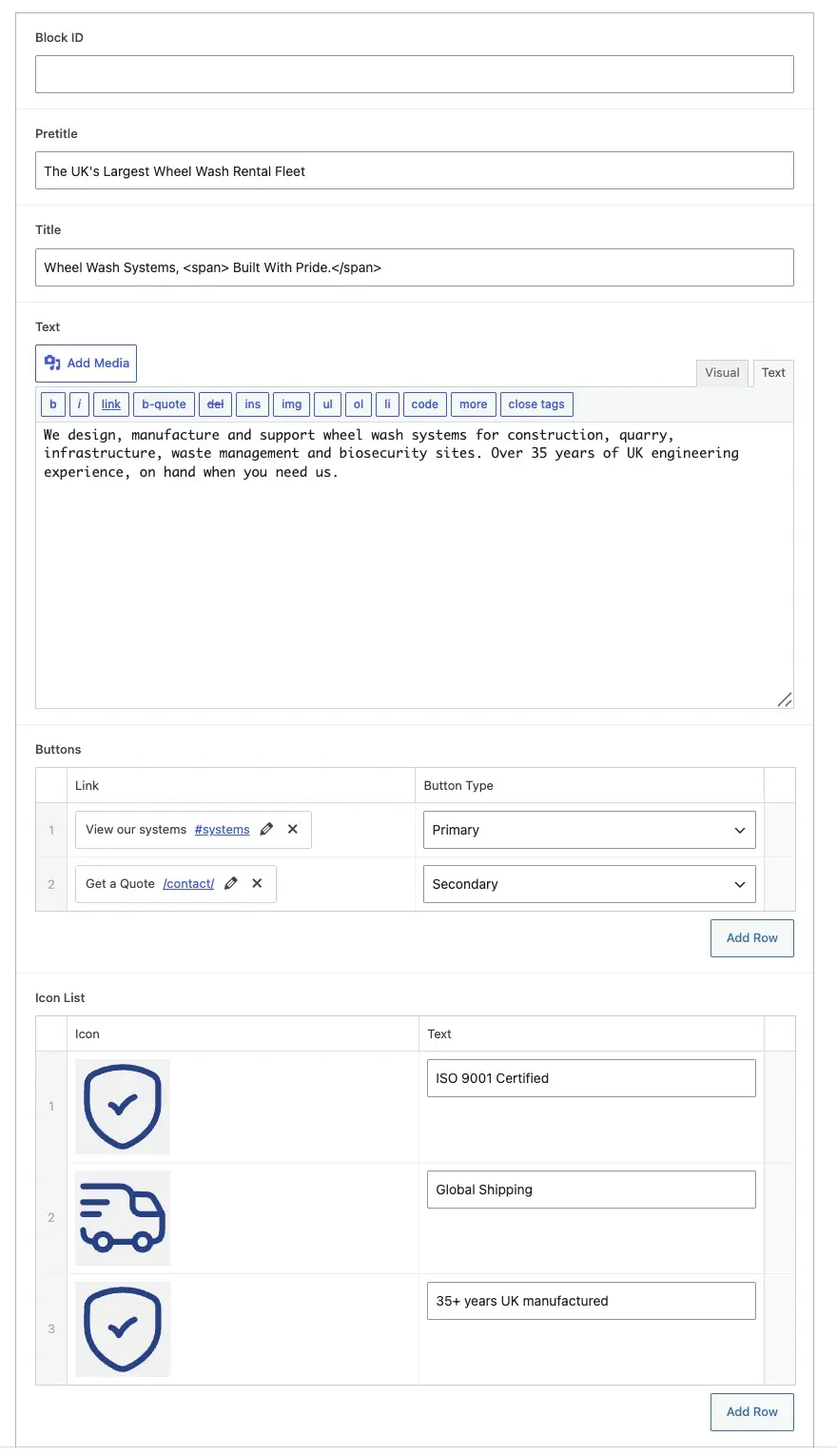
A correctly sideloaded ACF image field stores an attachment ID (a number). If the field shows a URL string instead, sideload failed and the importer fell back to hotlinking. Re-import the page or manually assign the image from the Media Library. After sideload, the ID must reference a file that exists in wp-content/uploads on the new server.
CDN and offloaded media
Sites using WP Offload Media, Cloudflare Images, or custom S3 buckets store files off-server. Content may reference cdn.client.com URLs. Migration requires: copy files to new storage (or new bucket), update URL patterns in content and meta, and reconfigure the offload plugin on the new environment. This is a separate workstream from page content migration — budget it explicitly.
Alt text and image SEO
Broken images are visible; lost alt text is not. When sideloading, preserve alt attributes from the old img tags into WordPress attachment meta. ACF image fields may have separate alt sub-fields — map them during import. Crawl old and new sites comparing image alt coverage on key pages. Image SEO is part of Yoast preservation on pages where featured images drive social previews.
Prevention on your next migration
Build image verification into migration QA: crawl staging for image 404s before launch, not after the client emails you. A crawl-and-map migration sideloads during import — manual copy-paste and WXR are where image failures cluster. See copying pages between sites for why WXR struggles on layout-heavy content.
Builder-specific image problems
Page builders store images in ways crawlers must untangle. Elementor puts URLs in _elementor_data JSON. Beaver stores image IDs in _fl_builder_data. Divi uses shortcode attributes. The rendered front-end page normalises all of this into visible img tags — which is why crawl-and-map sideloads work. Naive database copy leaves builder meta behind and images break when the builder is deactivated.
Image QA checklist before launch
- 1Crawl staging for image 404s — export full list.
- 2Spot-check homepage, top five landing pages, and blog archive.
- 3Verify ACF image fields show thumbnails in editor, not URL text.
- 4Check og:image on key pages — social previews use different meta than img tags.
- 5Test retina/srcset on mobile — missing -300x200 thumbnails show as full-size or broken.
- 6Confirm logo and favicon in theme customiser or options.
- 7Regenerate thumbnails after theme switch; re-crawl.
Fixing images post-launch
If images break after launch despite staging QA, the usual cause is absolute URLs containing the staging domain that shipped to production. Run search-replace on production carefully — backup first, use --dry-run on WP-CLI. Hotlinked old-domain images mean sideload was skipped; re-import affected pages or bulk sideload from a CSV of image URLs.
Lazy-load and srcset complications
Page builders and performance plugins replace img src with data-src for lazy loading. Crawlers read the rendered page after JavaScript executes — which is why front-end crawl beats database copy. On the new site, let your optimisation plugin (WP Rocket, Perfmatters) handle lazy-load natively — do not migrate builder-specific lazy-load attributes into ACF fields. WordPress generates srcset automatically when thumbnails exist — another reason to regenerate image sizes after theme switch.
When to bulk-copy uploads vs sideload
| Scenario | Recommended approach | Risk |
|---|---|---|
| Fresh install, under 2GB uploads | Bulk FTP copy + search-replace URLs | Orphaned unused files |
| Fresh install, large media library | Sideload per-page during import | Slower but cleaner |
| Same-server theme rebuild | Uploads already present; fix URLs only | Low |
| CDN-offloaded media | Copy bucket + reconfigure plugin | URL pattern mismatches |
Integrating image checks into staging workflow
Image verification belongs in the staging migration workflow, not as a post-launch firefight. After import, crawl staging for image 404s before editors start review — fix bulk failures first, then hand pages to the client. After editor sign-off, crawl again. Images added manually during review may still hotlink if editors paste URLs instead of using the Media Library. Train editors: always upload, never paste image URLs.
Featured images and social cards
Featured images are attachment IDs on posts — separate from in-content images. If you migrate posts via crawl-and-map, confirm _thumbnail_id meta or set featured images during import. Open Graph images in Yoast may reference a specific attachment — verify social previews on five key pages with Facebook Sharing Debugger after migration.
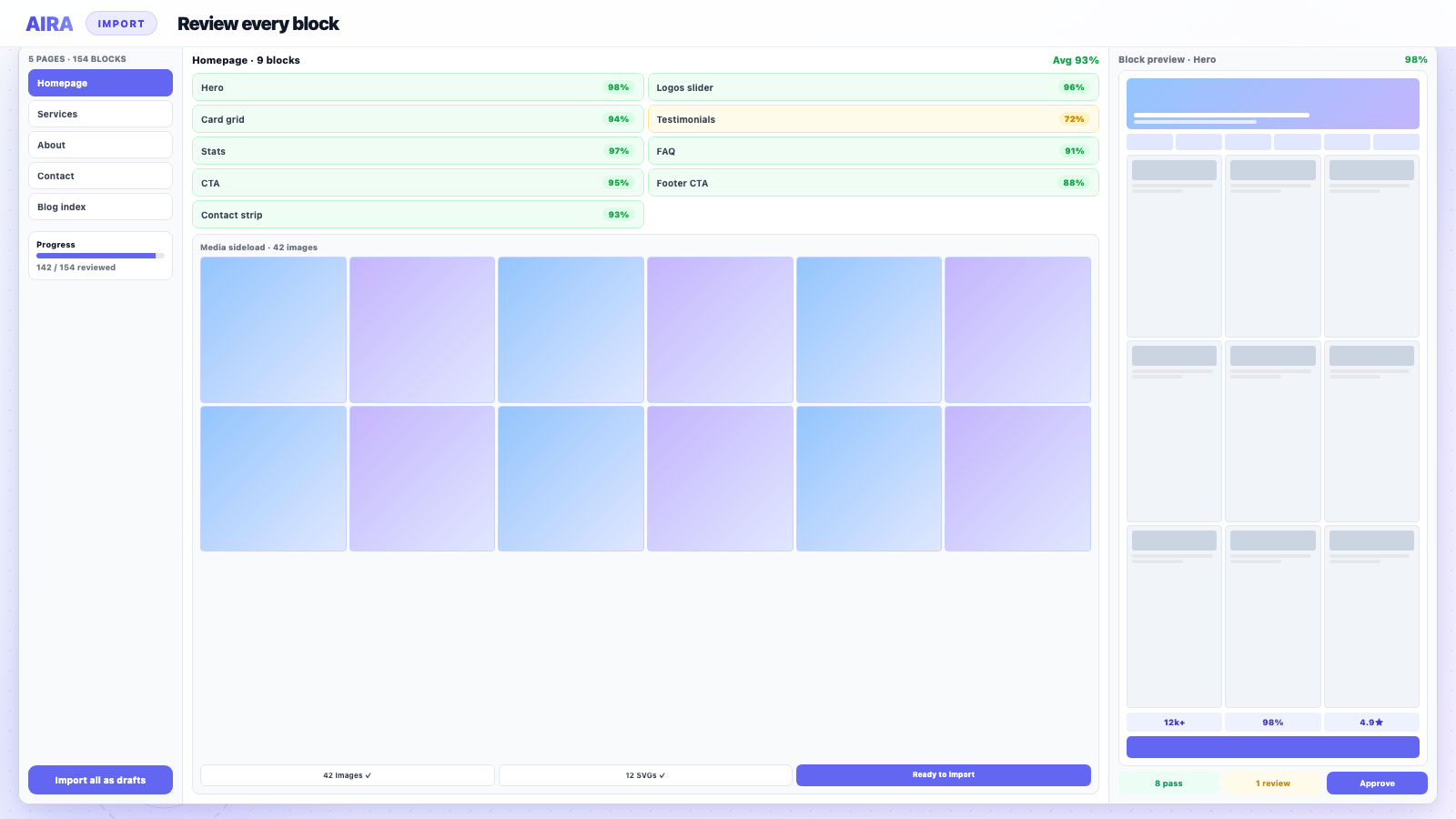
Treat image migration as part of content migration, not a separate post-launch task. When you import an ACF Migrate bundle, sideloading runs during import — check the Media Library count against the old site's image inventory. A healthy migration adds hundreds of attachments; an empty Media Library with populated pages means sideload failed wholesale.
Logos and favicons are images too — easy to forget because they live in theme options, not post content. Export the old logo from the live site, upload to the new Media Library, and assign in the customiser. A broken logo on launch day is the first thing the client screenshots.
Companion to broken internal links. AIRA sideloads images and rewrites URLs in the same pass as ACF field population — one pipeline, not three separate fix-up jobs after launch.
Image failures are the most visible migration defect to clients — more visible than a wrong meta description or a redirect chain. Fix them on staging before handover.
Prevent broken images on the next rebuild
This guide fixes problems after the fact — media library migration is the upfront playbook (attachment IDs, ACF image fields, CDN URLs). Builder sites should sideload from rendered pages during crawl import per Elementor or Divi guides. Fold image checks into migration QA.
Frequently asked questions
Why does WordPress import fail to download images?expand_more
Common reasons: the source site blocks external requests, SSL mismatches, timeout on large files, or the uploads folder path differs between servers. The importer often continues without error even when attachments partially fail — so always verify the Media Library, not just the post content.
Should I use a search-replace plugin to fix image URLs?expand_more
Search-replace on the database can fix bulk absolute-URL problems, but run it on staging first and back up. It will not create missing files — if the image was never sideloaded, you still need to import the actual file into uploads.
Do WebP images cause migration problems?expand_more
Only if the new server does not serve WebP or the sideload stripped the format. Verify MIME types and that your image optimisation plugin on the new site supports the formats you are migrating. When in doubt, sideload the original full-size file and let the new stack convert.
How do I find all broken images on staging?expand_more
Crawl with Screaming Frog or Sitebulb and filter for image URLs returning 404. Export the list, group by cause (old domain vs missing file), and fix in batch. Run again before launch until the list is empty.
Why do images work on the front end but not in the editor?expand_more
Usually an ACF image field storing a URL string instead of an attachment ID, or a block attribute pointing at an old URL. Re-assign the image from the Media Library so WordPress stores the correct attachment ID.
What about background images in page builders?expand_more
Builder background images often live in post meta or inline CSS, not in img tags. Crawl the rendered page; the classifier should capture them in hero or image block fields. Verify ACF fields after import, not just visible img elements.
Can I sideload images after import?expand_more
Yes — re-run the import for affected pages, use wp media import for individual files, or a bulk sideload plugin. It is slower than sideloading during initial import but fixes gaps before launch.
Do SVG images need special handling?expand_more
WordPress blocks SVG uploads by default for security. Enable SVG support via a plugin (Safe SVG) on the new site before sideloading, or convert logos to PNG for the migration pass.
How does AIRA handle images during migration?expand_more
AIRA sideloads images into the WordPress Media Library during bundle import and writes attachment IDs into ACF image fields. URLs in post content are rewritten to the new paths. Failed sideloads are flagged in the review UI.
Should I migrate the entire uploads folder?expand_more
For same-server theme rebuilds, the uploads folder may already be in place. For fresh installs, either bulk-copy uploads via FTP/SFTP or sideload per-page during import. Bulk copy is faster for large libraries; sideload ensures only used images transfer.

Ryan Hale
Head of Front End Development
Ryan Hale is Head of Front End Development at AIRA, where he leads the team building the engine that migrates WordPress sites into native ACF blocks. He has spent more than a decade building and rebuilding WordPress sites for agencies, with deep, hands-on expertise in Advanced Custom Fields, Gutenberg block development, and large-scale content migrations that protect search rankings. He writes about ACF, moving off page builders like Elementor and Divi, and the practical craft of shipping fast, maintainable WordPress rebuilds.
Reviewed to our editorial guidelines.