WordPress media library migration: images, files, and attachment IDs
How to migrate the WordPress media library during a rebuild — attachment IDs, ACF image fields, galleries, sideloading, CDN URLs, and the QA steps that…
verifiedReviewed by Tommy Smith,Content Director
Media migration fails when attachment IDs in post meta and ACF fields still point at the old database. Export files via WP-CLI or migration plugins, sideload into the new Media Library, remap IDs in ACF and featured images with a script, replace hardcoded old-domain URLs in content, and QA every image field type — not just the featured image.
The media library is the most underestimated part of a WordPress migration. Content imports look fine in the editor while images 404 on the front end because attachment IDs in post meta still reference the old database, ACF image fields store serialized arrays with old attachment IDs and URLs, and page builders embed absolute CDN paths that do not exist on the new host. Agencies discover this on launch day when the client opens the homepage on mobile. This guide is the media-specific playbook — complementary to broken images after migration but focused on doing it right the first time.
Why attachment IDs break
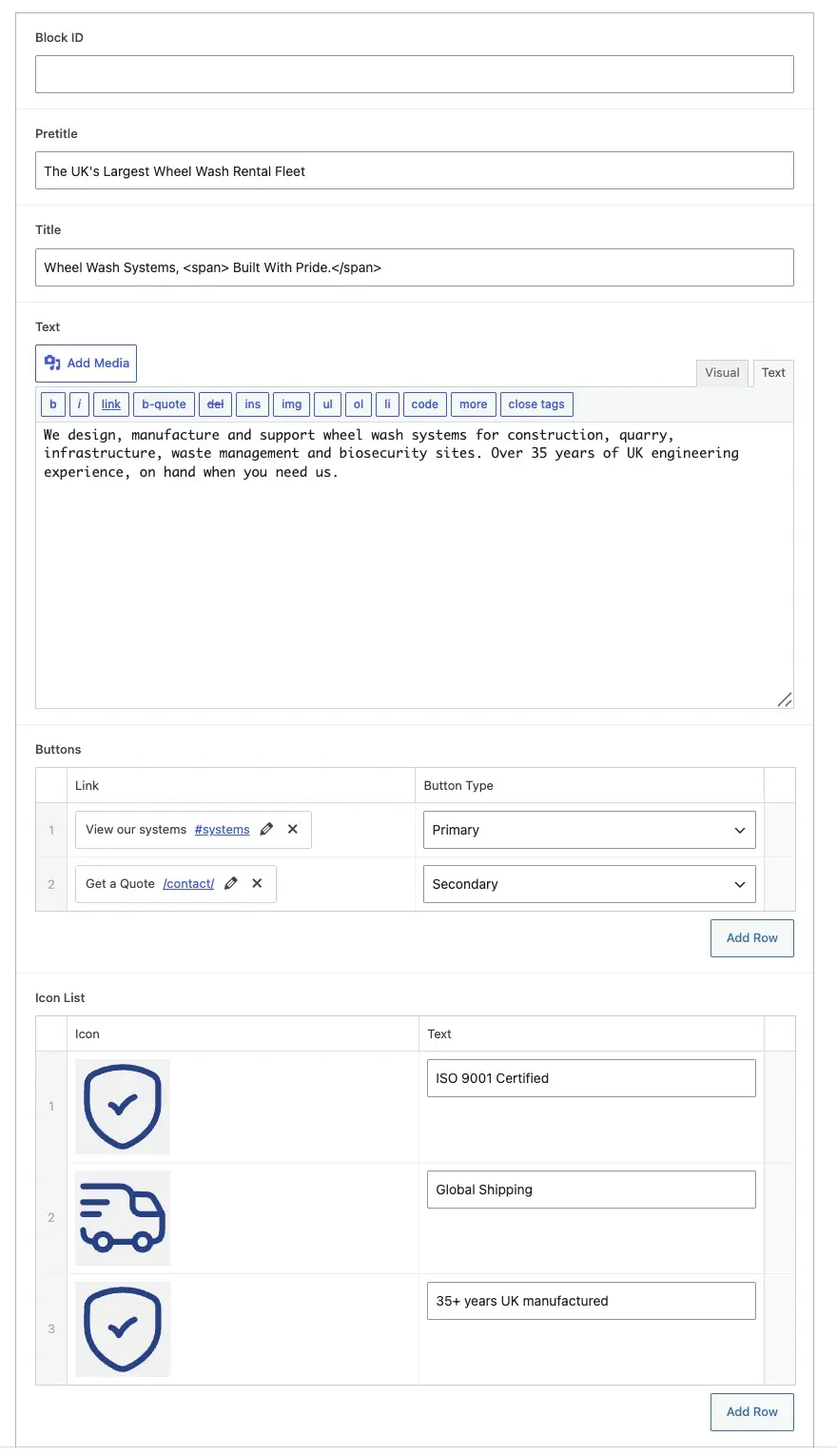
WordPress identifies media by attachment post ID in wp_posts. ACF image fields typically store an array: attachment ID, URL, width, height, alt text. When you import pages without importing media in the same ID order, field values point at wrong files or empty attachments. Featured images (_thumbnail_id) have the same problem. Galleries and repeater rows multiply the failure surface — a case study with hero image, six gallery rows, and three repeater stats icons can have twenty attachment references on one post.
| Storage pattern | What breaks | Fix approach |
|---|---|---|
| ACF image field (ID) | ID mismatch after import | Sideload + remap by filename or old URL |
| Featured image | _thumbnail_id wrong | Remap after media import |
| Hardcoded URL in post_content | Old domain or CDN path | Search-replace + verify |
| Builder background URLs | Stored in postmeta | Crawl sideload or manual reassign |
| WooCommerce product gallery | Gallery ID list | Dedicated product media script |
| SVG / PDF attachments | MIME type blocked on new host | Allow MIME or serve differently |
Migration approaches compared
Full media export with WP-CLI
On the old site: rsync wp-content/uploads to the new server, or use migration plugins that copy binary files. Register attachments in wp_posts on the new site preserving filenames and post_name. Run a remapping script that matches old attachment URL or _wp_attached_file path to new attachment ID, then updates post meta across all posts. Best for large libraries (5,000+ files) and when you control both servers. WP-CLI wp media import can register files already on disk.
Sideload from rendered pages
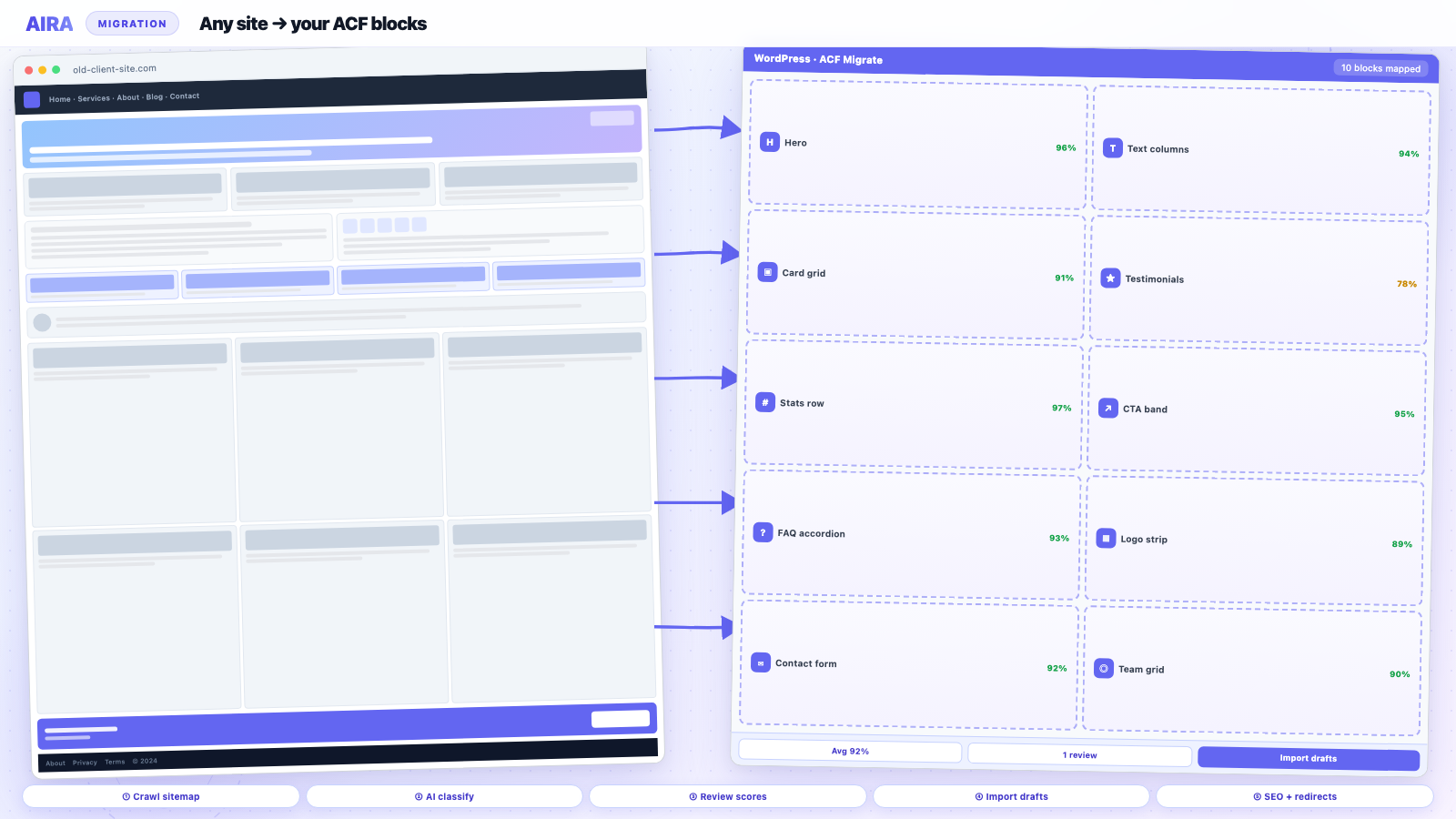
Crawl-based migration tools sideload images from the live rendered page into the new Media Library and attach them to the correct ACF fields during import. Best when old site is still live and builder storage is messy — Elementor and Divi store background images in postmeta strings, not clean attachment IDs. Slower for huge libraries but produces correct field attachment on mapped blocks without a separate remap pass.
WXR with attachments
WordPress importer can download attachments referenced in WXR. Works for straightforward sites; often times out on large libraries or skips files behind hotlink protection. Increase PHP max_execution_time and memory limits; chunk WXR files by post type. Verify attachment count after import — importers silently skip unreachable URLs.
| Approach | Best for | Weakness |
|---|---|---|
| WP-CLI / rsync | Large libraries, same agency infra | Needs ID remap script |
| Sideload on crawl | Builder sites, platform migrations | Slower; dedupes needed |
| WXR attachments | Simple WordPress-to-WordPress | Timeouts; partial downloads |
Page builder media traps
Elementor stores background images as CSS url() in JSON postmeta. Divi uses shortcode attributes with attachment IDs and external URLs interchangeably. WPBakery single images may be IDs while rows use full URLs. Crawling the rendered page sideloads what visitors actually see — usually the right outcome. Database-only migration of builder postmeta without files on disk produces empty sections.
ACF field types that need media QA
- arrow_rightImage — single attachment ID; verify alt text migrated.
- arrow_rightGallery — array of IDs; count rows old vs new.
- arrow_rightFile — PDFs and downloads; test actual download URL, not just admin preview.
- arrow_rightRepeater with image subfields — every row, every page.
- arrow_rightFlexible content layouts with image components — each layout variant.
- arrow_rightWYSIWYG — inline <img> tags may use absolute URLs; check src and srcset.
- arrow_rightoEmbed — usually fine; spot-check video thumbnails.
- arrow_rightGoogle Map — static map images if used, separate from lat/lng fields.
Remapping attachment IDs with scripts
The reliable remap pattern: export old attachments as CSV (old_id, file_url, filename); after import to new site, build a lookup keyed by filename or URL path; foreach post with ACF meta, replace old IDs with new IDs. Use serialized-safe tools — raw SQL REPLACE on postmeta corrupts PHP serialized arrays when string lengths change. WP-CLI with proper search-replace handles serialization; test on staging posts first. Log unmapped files — orphans indicate missing sideloads.
Alt text, titles, and SEO images
Attachment post meta stores _wp_attachment_image_alt — migrate with the attachment, not just the binary. Open Graph images often live in SEO plugin meta pointing at attachment IDs or absolute URLs — cross-check SEOPress, Yoast, or Rank Math after media remap. Missing og:image on case study singles hurts social sharing more than missing body images.
CDN and offloaded media
Sites using S3, Cloudflare R2, or WP Offload Media store URLs pointing at buckets. Migration means either re-offloading from the new library or copying bucket contents and updating domain settings in the plugin. Search postmeta for old bucket URLs — wp db search 'amazonaws.com' or your bucket domain. If the client pays for CDN tied to the old host, budget storage transfer separately from content migration. Ensure new bucket CORS and public-read settings match how WordPress serves images.
WebP, AVIF, and modern image formats
Hosts with automatic WebP conversion may serve different MIME types than the old site. After migration, verify picture/source elements in theme output. Imagify, ShortPixel, and host-level optimisation may regenerate sizes — run after attachment import completes, not before. Srcset attributes should reference new domain paths exclusively — grep page source for old host strings.
Search-replace discipline
After ID remapping, run serialized-safe search-replace for old domain URLs in wp_posts and wp_postmeta. Tools: WP-CLI search-replace, Better Search Replace. Never blind-replace http with https without checking mixed content. Verify a sample of ACF repeaters in the database — corrupted serialization breaks entire field groups and shows as empty editors. Always backup database before bulk search-replace.
Deduplication and orphaned files
Sideloading the same hero image on forty pages can create forty duplicate attachments — bloating the library and confusing editors. Deduplicate by filename hash or source URL during import where tooling supports it. Orphan attachments (files in library not referenced anywhere) are acceptable short-term; run Media Cleaner after launch during quiet period. Missing files (referenced but not in library) block launch — fix before DNS.
Media QA checklist
- 1Attachment count old vs new within expected delta (±5% or explain gap).
- 2Homepage, top five landing pages, blog index — all images load on desktop and mobile.
- 3Open three random ACF-heavy pages in front end and admin — field previews match.
- 4Download one file field asset end-to-end.
- 5Gallery lightbox and carousel interactions work.
- 6og:image and Twitter card image on key URLs — LinkedIn Post Inspector.
- 7Srcset attributes point at new domain — no old host in page source.
- 8Product images on WooCommerce if applicable — thumbnail, gallery, variation image.
- 9Favicon and site logo in Customizer/theme options.
Fold into the broader migration QA checklist before sign-off.
Worked example: Elementor agency site, 2,400 attachments
A services firm site has 2,400 media items and sixty pages built in Elementor. Rebuild with ACF blocks. Approach: crawl sixty pages via AIRA — sideloads roughly 380 images used on rendered pages into correct ACF fields; rsync full uploads folder for PDFs and unused assets; WP-CLI script maps old _thumbnail_id and remaining ACF image IDs by filename; serialized search-replace old CDN domain; regenerate thumbnails; Media Cleaner two weeks post-launch. QA found fourteen background images stored only in Elementor postmeta — fixed by re-crawling three pages with missed sections. Media work: three dev-days on a project quoted at twelve days total.
When images break after launch despite planning: broken images causes and fixes.
Multisite and network media libraries
WordPress multisite shares wp-content/uploads across sites with site-specific subfolders (sites/2/). Migrating one subsite to standalone WordPress requires copying only that site's upload path and remapping URLs that included /sites/3/ in the path. Network-activated themes may reference shared assets — grep for old network domain in postmeta. See multisite migration guide for broader network context.
SVG, video, and non-image attachments
SVG uploads are often blocked on security-conscious hosts — enable via Safe SVG plugin or MIME allowlist before editors upload logos. Video files may live in Media Library or external hosts (Vimeo, Wistia). oEmbed URLs in ACF oEmbed fields survive migration if URL unchanged; self-hosted MP4 files need the same rsync treatment as images. PDF spec sheets on product pages: verify Content-Disposition and that permalinks to attachment pages are noindexed if thin.
Performance after media migration
A bloated uploads folder slows backups and migrations. After launch, consider lazy loading verification, proper width/height attributes on migrated images (Core Web Vitals), and CDN configuration on the new host. Page builder migrations often imported oversized PNG heroes — compress during migration, not six months later when Lighthouse scores matter to the client.
Coordinating media with content migration tools
AIRA sideloads images during page import — the preferred path for ACF block rebuilds because field IDs are correct at draft creation. WP All Import and WooCommerce CSV importers sideload from URL columns — preferred for hundreds of products. WP-CLI rsync suits full-library clones on WordPress-to-WordPress agency moves. Mixing approaches is normal: rsync the archive, crawl-map marketing pages, CSV-import products. Document which method applied to which content type in the project README so the next developer can debug a broken gallery without reverse-engineering the migration. Include example attachment IDs from staging QA in that doc.
Media ties into every other migration guide
Broken images after launch? Troubleshooting guide: broken images causes and fixes. Builder sites: sideload during Elementor or Flatsome crawl import. CPT galleries and repeater images: CPT migration. QA: migration checklist.
Frequently asked questions
Why do images work in wp-admin but not on the front end?expand_more
Admin may show a thumbnail from a cached URL or placeholder while the theme reads ACF attachment IDs that are wrong or empty. Check the raw field value in the database and the rendered <img> src on the front end separately.
Does AIRA handle media during migration?expand_more
Yes — images from crawled pages are sideloaded into the Media Library and attached to mapped ACF image and gallery fields during import. Bulk library migration for thousands of unattached files still benefits from WP-CLI.
Should I migrate media before or after content?expand_more
Register ACF field groups first, then either sideload-on-import during content migration or import all media and remap IDs before editors review drafts. Remapping after the fact across hundreds of pages is harder than getting IDs right during import.
How do I migrate WooCommerce product galleries?expand_more
Product gallery IDs live in _product_image_gallery post meta as comma-separated attachment IDs. Import products after media remap script runs, or use WooCommerce CSV import with image URL column and let the importer sideload.

Ryan Hale
Head of Front End Development
Ryan Hale is Head of Front End Development at AIRA, where he leads the team building the engine that migrates WordPress sites into native ACF blocks. He has spent more than a decade building and rebuilding WordPress sites for agencies, with deep, hands-on expertise in Advanced Custom Fields, Gutenberg block development, and large-scale content migrations that protect search rankings. He writes about ACF, moving off page builders like Elementor and Divi, and the practical craft of shipping fast, maintainable WordPress rebuilds.
Reviewed to our editorial guidelines.