How to use AIRA: the complete migration walkthrough
Step-by-step guide to the AI ACF blocks importer — export your blocks, crawl any site, convert content to ACF blocks, and import pages, media and SEO into…
verifiedReviewed by Tommy Smith,Content Director
To use AIRA: export your ACF blocks as JSON, upload to generate a mapping spec, crawl the old site (free), review AI-classified sections, commit (1 credit = 1 page), and import via the AI ACF blocks importer as drafts — media, links and SEO included.
Who this is for
- Agencies: Bulk-migrate client marketing pages into your ACF block library before launch.
- Freelancers: Take on builder-exit rebuilds without a week of copy-paste per site.
- Developers: Generate serialize_block() drafts from a crawl instead of hand-mapping every section.
Steps at a glance
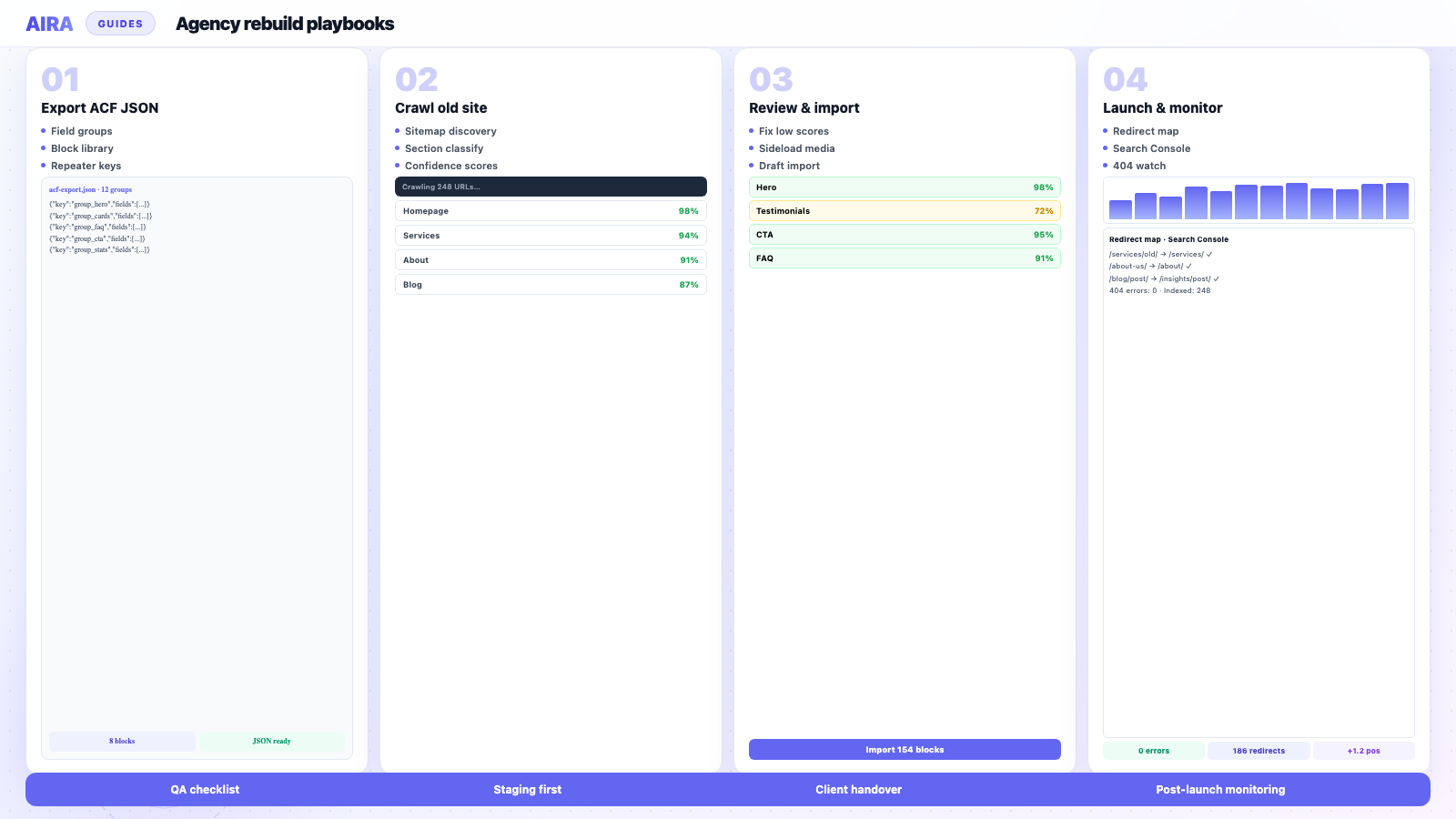
- Export ACF JSON from the new theme and upload to AIRA.
- Crawl the old site — review block classifications and confidence scores.
- Commit credits, download bundle.json, import drafts via ACF Migrate.
- QA repeaters, redirects, and SEO — publish when staging passes.
This is the long version of the AIRA workflow — every step, every option, and the things worth knowing before you spend a credit. AIRA is an ACF blocks migration tool and AI ACF blocks importer: export your blocks, generate a spec, crawl the old site, review how it will convert content to ACF blocks, and import finished pages into WordPress. Below we go through each stage in full.
At a high level there are two halves: the AIRA app (where you build a spec and crawl the source site) and the AIRA WordPress plugin (where you review and import the result). New to the concepts? Skim how to migrate a website to ACF Gutenberg blocks first, then come back here for the detailed run-through.
Before you start
- arrow_rightYour new build running WordPress 6.4+ with ACF Pro and your ACF blocks registered.
- arrow_rightAccess to ACF → Tools on the new site to export your field groups.
- arrow_rightA free AIRA account, and the AIRA WordPress plugin (you'll download it in step 5).
- arrow_rightThe URL of the site you want to migrate from — it does not have to be WordPress.
Step 1 — Export your ACF blocks
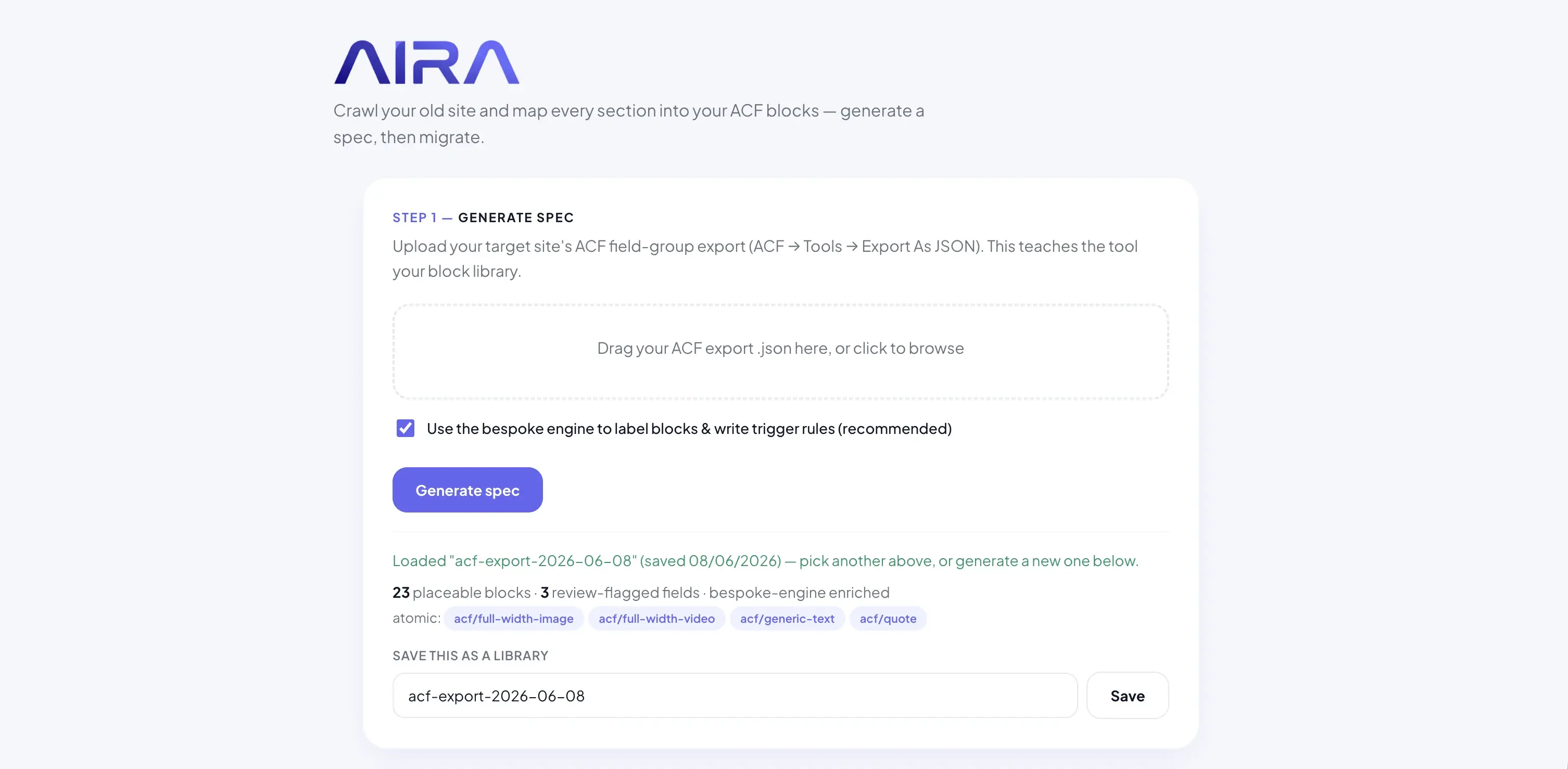
In WordPress admin, go to ACF → Tools and export the field groups for the blocks you want AIRA to map into. This export is the blueprint AIRA uses to understand your block library. Need the detail on what's inside that file? See ACF JSON export explained.
Step 2 — Upload your export and generate a spec sheet
Head into the AIRA app and upload your export. AIRA reads it and generates your spec sheet — the mapping rules that describe every block, field key and repeater, and decide which kind of section maps to which block.
Step 3 — Add the source site and choose your crawl
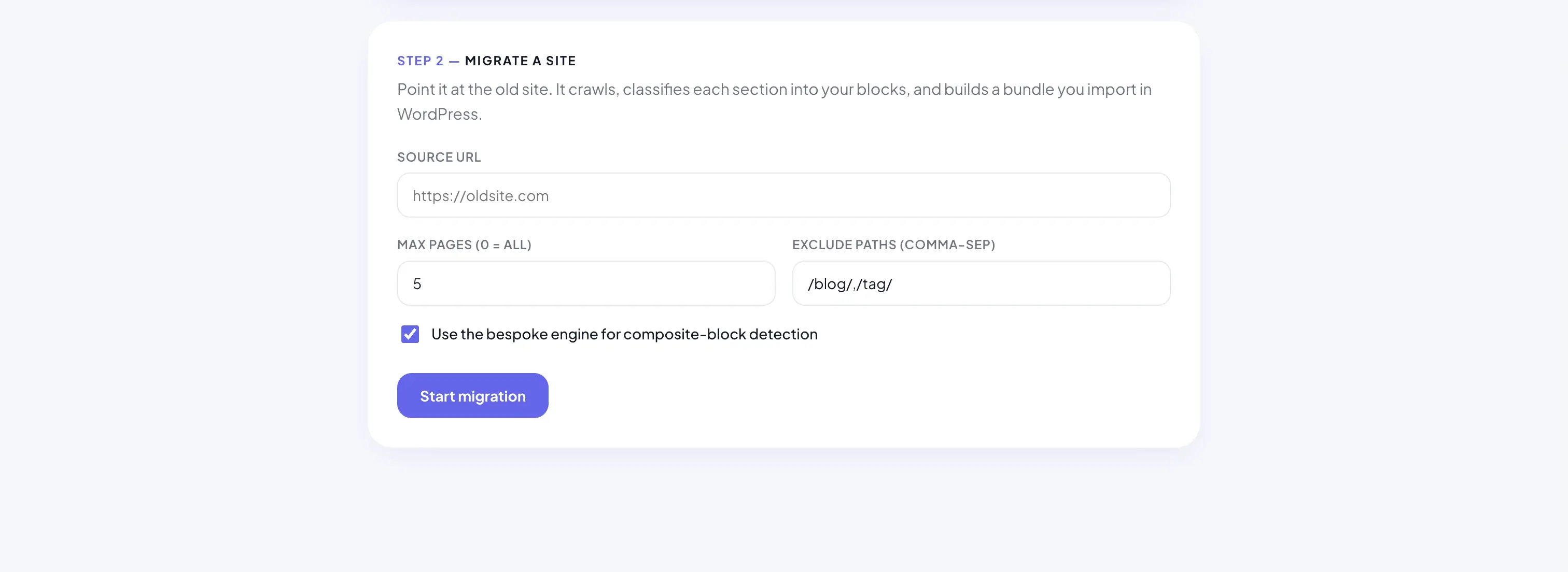
Scroll to the next section and paste in the URL of the site you want to crawl. This is one of AIRA's most useful tricks: the source does not have to be a WordPress site. It can be static HTML, a different CMS, or a page builder — if it's reachable on the web, AIRA can read it.
- arrow_rightSet how many pages to crawl with the max-pages cap.
- arrow_rightExclude the easy-to-migrate or low-value paths — blog posts, tag and author archives — so you spend credits only on the pages that matter.
- arrow_rightAIRA discovers pages from the sitemap and reads each one with the full DOM intact.
Step 4 — Start the migration and review the flags
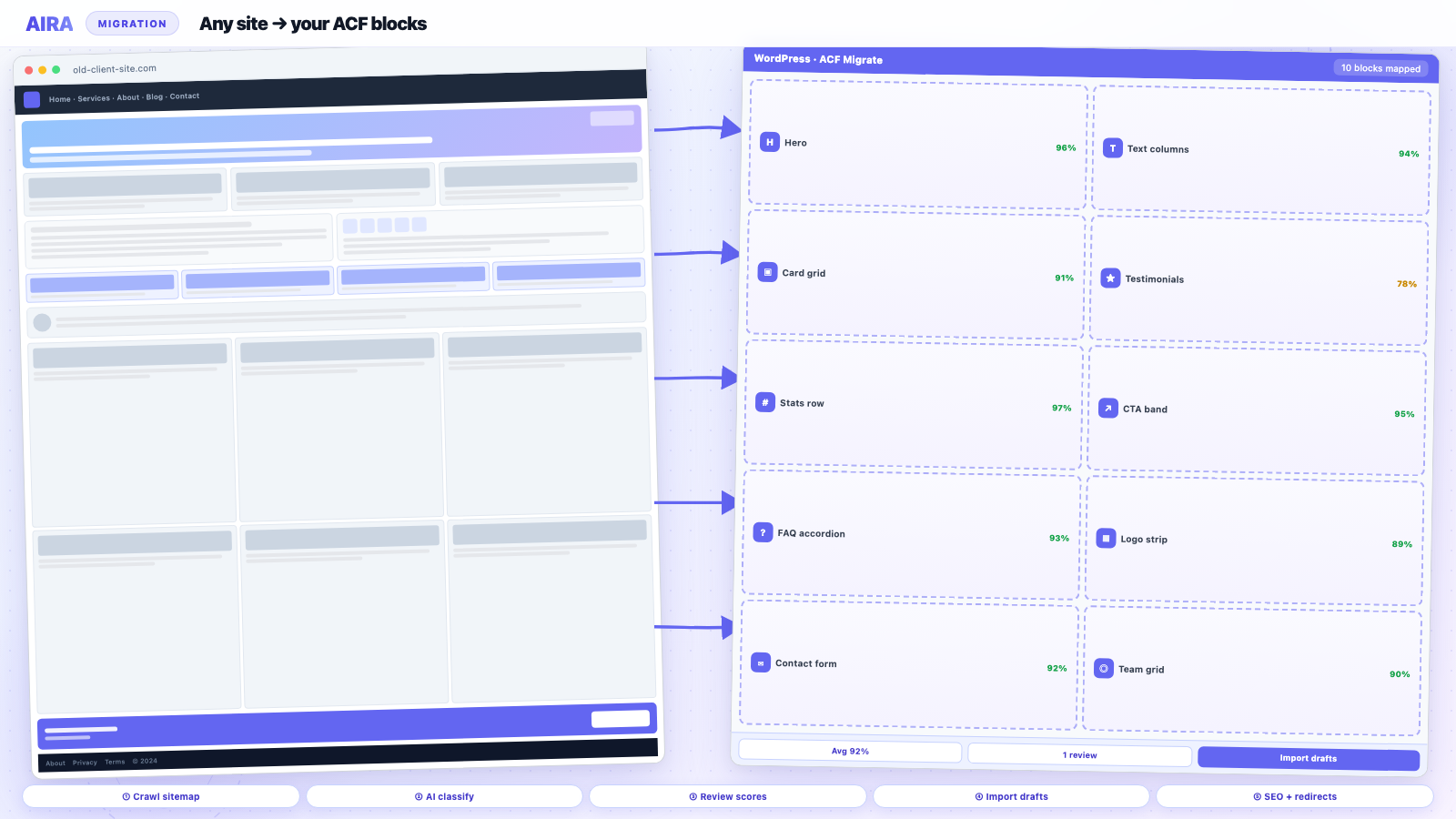
Hit Start migration. AIRA crawls the pages, classifies every section into one of your ACF blocks, and generates an import file you'll upload to the WordPress plugin. Crucially, it flags anything it's unsure about — blocks with low confidence — and lists any pages that failed to crawl.
Review those flags before you commit. Because credits are only spent when you commit the run and download the import file, this is your free checkpoint: confirm the flagged pages look right, and you never pay for a page that didn't crawl cleanly.
Step 5 — Install the WordPress plugin (first time only)
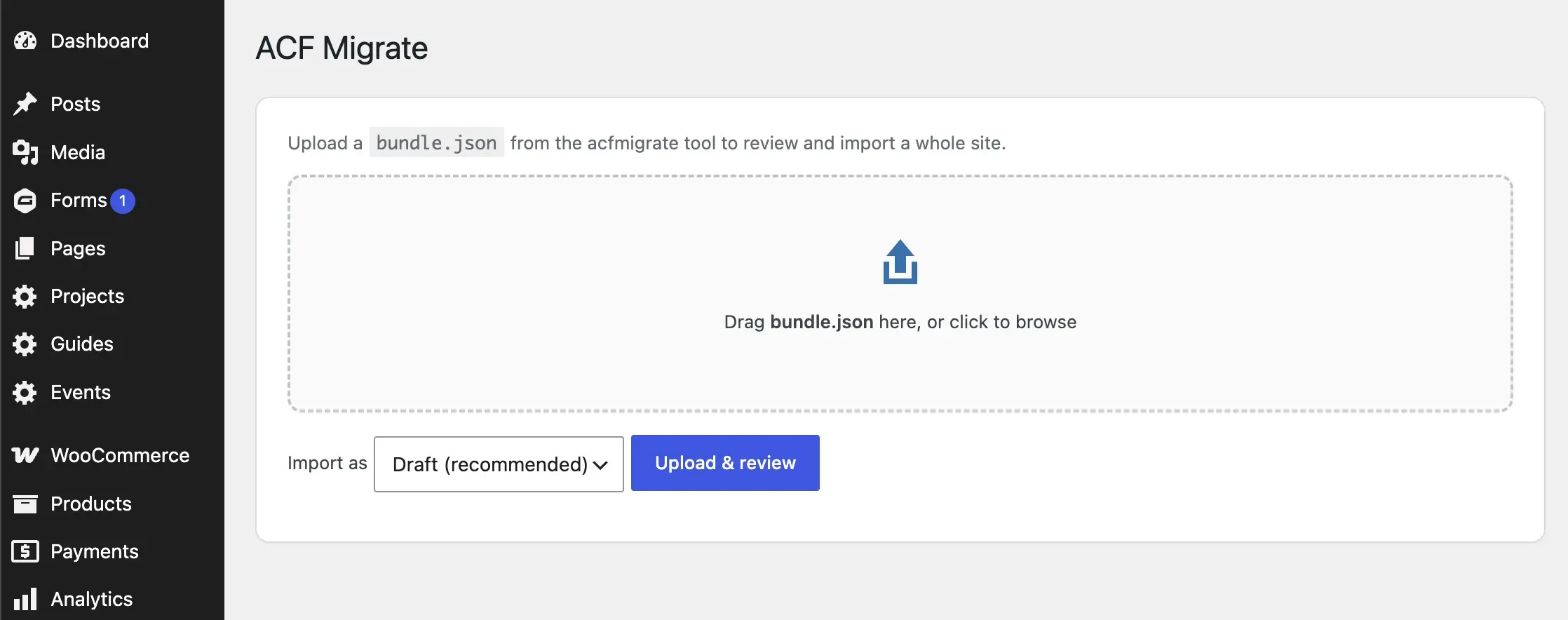
If this is your first migration, download the AIRA plugin from the app and install it on your new site.
- 1Download the plugin ZIP from the AIRA app.
- 2In WordPress admin go to Plugins → Add New Plugin → Upload Plugin, choose the ZIP, and activate it.
- 3Open the AIRA importer from the Tools menu, ready to receive your import file.
Step 6 — Upload, review and remap
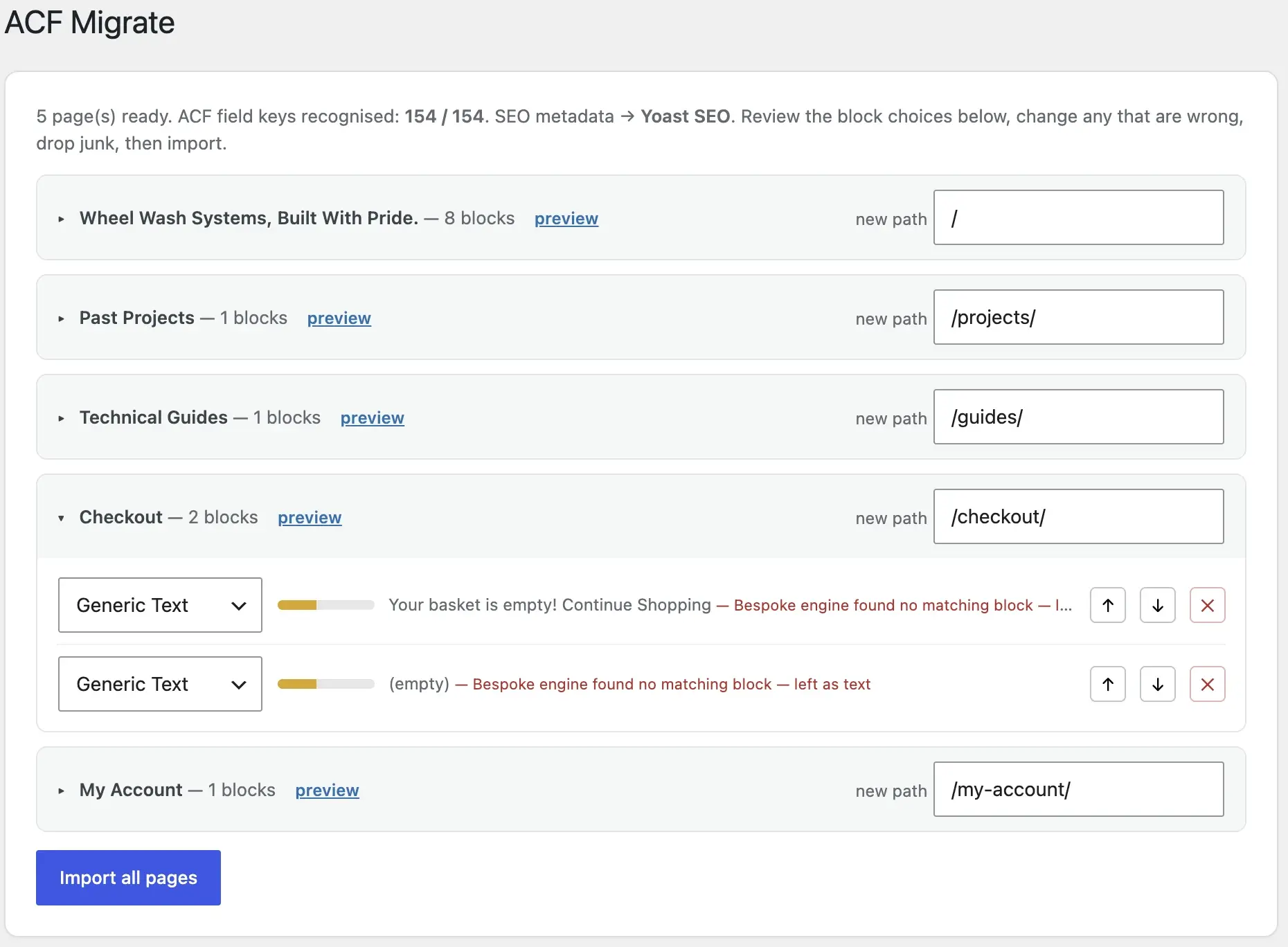
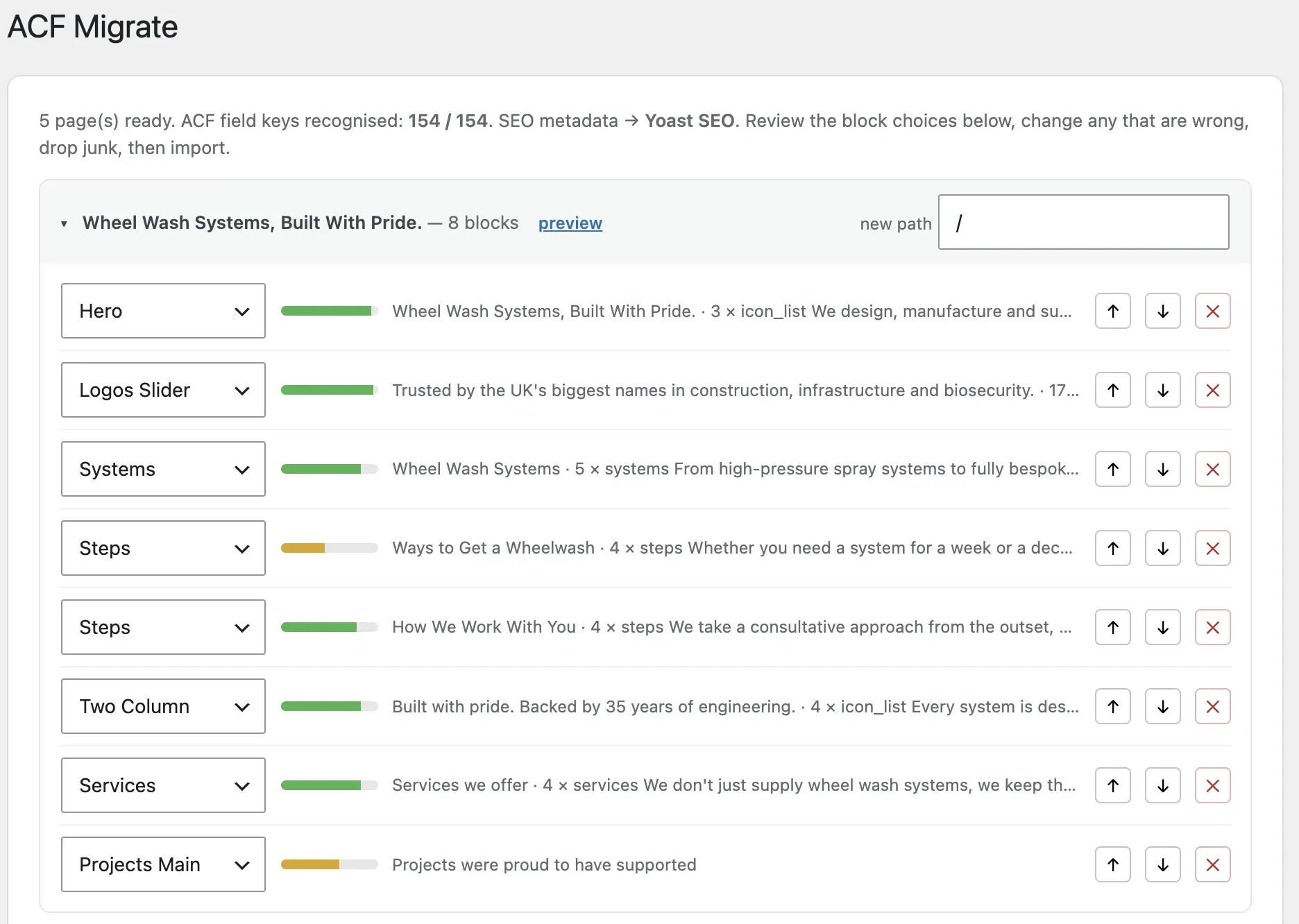
Upload your import file into the plugin. AIRA lists every page queued for import. Expand any page to see exactly which block it mapped to each section of the original page.
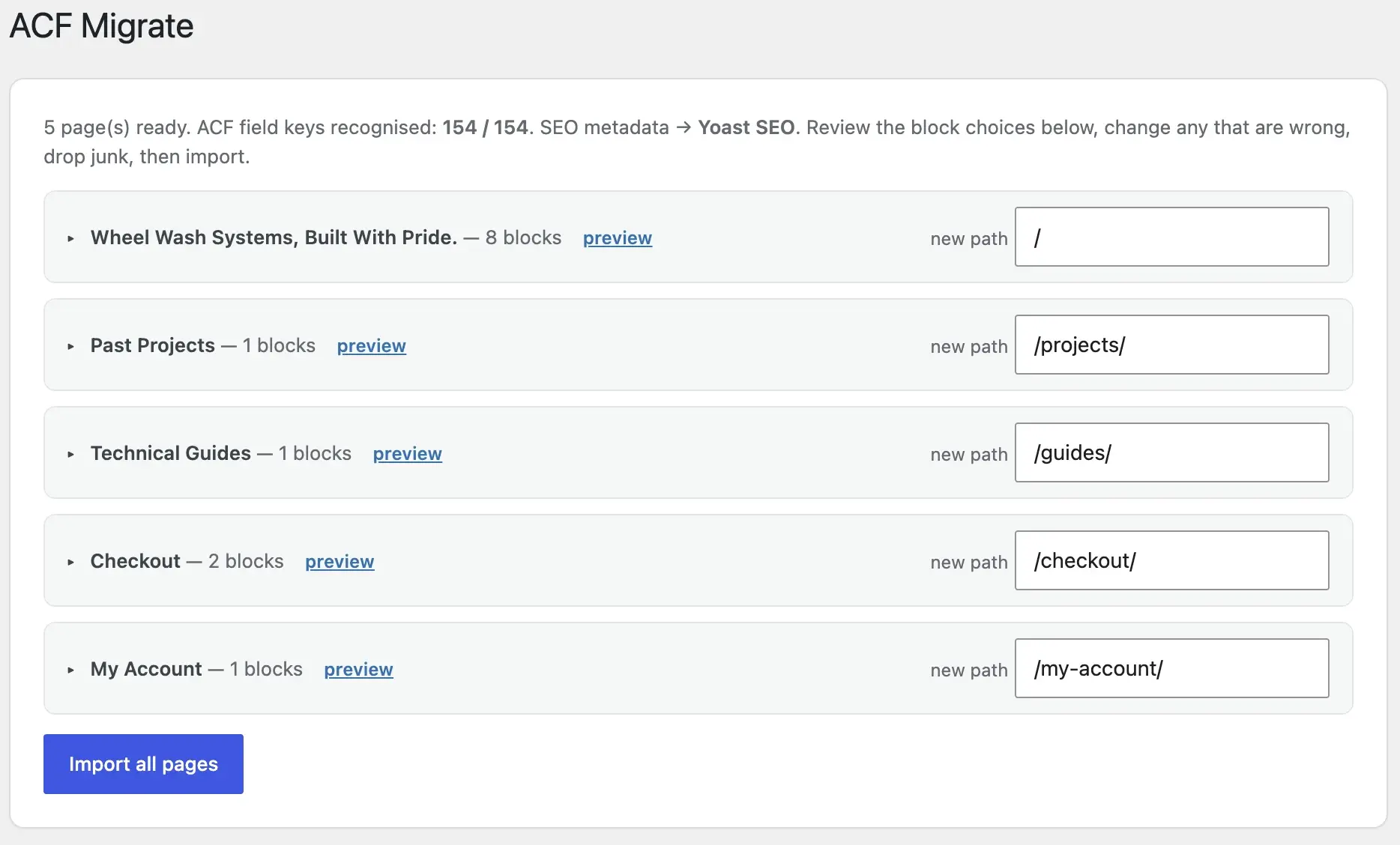
- arrow_rightIf a section was mapped to the wrong block, change it right here from the dropdown — no need to re-crawl.
- arrow_rightEdit the destination URL or slug for each page.
- arrow_rightFrom your URL changes, AIRA generates a ready-to-import CSV of 301 redirects (old → new) so you don't break existing links or rankings.
Step 7 — Run the import
Once you're happy with the mapping, hit Run. AIRA generates your pages with the ACF blocks in place and the content dropped straight into the correct fields — no copy-paste.
- arrow_rightMedia is downloaded and imported into your staging site's Media Library automatically, and attached to the right image and gallery fields.
- arrow_rightAny meta titles and descriptions that were carried over are written directly into your chosen SEO plugin — Yoast or Rank Math.
- arrow_rightPages are created so you can review them before publishing — nothing on your old site is ever touched.
The WordPress Migration Checklist
A printable, five-stage checklist covering everything from URL mapping to post-launch verification — so nothing slips through the cracks on your next rebuild.
- check_circlePre-flight & backup checks
- check_circleInventory and URL mapping
- check_circleContent migration into ACF blocks
- check_circleThe full SEO-preservation list
- check_circleLaunch-day & 4-week verification
Tips to get the best result (and save credits)
- arrow_rightReuse a saved spec sheet whenever you migrate into the same block library.
- arrow_rightInclude headers, footers and menus in your export so AIRA caches them instead of re-billing them per page.
- arrow_rightExclude blog, tag and author archives unless you specifically need them.
- arrow_rightGive your ACF blocks and fields clear, descriptive names — the classifier uses them to decide what goes where, so good naming means fewer remaps.
- arrow_rightUse the free crawl and the confidence flags as a preview before you commit any credits.
That's the whole workflow. For granular, single-topic answers — Cloudflare crawl access, credit rollover, troubleshooting a mis-mapped block — the knowledge base goes deeper on each step.
Exclude paths and crawl scope on real projects
Max-pages caps and path exclusions are how you keep credits focused on high-value URLs. Typical exclusions on agency rebuilds: /tag/, /author/, /page/* pagination beyond page 1, /cart/, /checkout/, /my-account/, /wp-admin/, feed URLs, and print-friendly query variants. Include blog posts only when they contain builder layouts — simple posts migrate fine via bulk tools or a separate smaller crawl.
- arrow_rightHomepage, services, about, contact — always include.
- arrow_rightCampaign landers in /lp/ or /landing/ — include; often highest SEO value.
- arrow_rightBlog index — include once as template reference; exclude individual posts if uniform.
- arrow_rightCPT archives — include archive URL; singles may need separate crawl pass.
- arrow_rightStaging or noindex URLs — exclude; crawl production only.
Troubleshooting failed or partial crawls
AIRA lists pages that failed to crawl in step 4 — do not commit credits for failed URLs until the underlying issue is fixed. Common causes: Cloudflare bot protection, HTTP auth on staging, rate limiting from the source host, SSL certificate errors, and pages that return 403 for non-browser user agents. Whitelist the crawler IP or temporarily relax Cloudflare security level during the crawl window — see the knowledge base for Cloudflare-specific steps.
Large sites: batching commits and review workflow
Two-hundred-page sites rarely need a single monolithic commit. Batch by section: commit marketing pages first, review and import, then run a second crawl for blog posts or CPT singles. Reuse the saved spec sheet — you do not pay to regenerate mapping rules. Assign reviewers by template type: one senior checks all service pages, another handles landers with heavy repeaters. Parallel review cuts wall-clock time without sacrificing accuracy.
- 1Crawl 10 representative pages first — validate spec sheet before full run.
- 2Commit homepage and top 20 GSC URLs; import and review.
- 3Commit remaining marketing pages in one or two batches.
- 4Separate crawl for CPT singles if not in initial sitemap.
- 5Final pass: image upload for SVG and decorative assets (~25% of blocks in benchmark data).
Remapping blocks in the plugin without re-crawling
Wrong block assignment does not require a new crawl or additional credits. In the AIRA WordPress plugin, expand the page, change the block dropdown for that section, and re-run import for that page. Section-level remapping preserves field content where block field structures are similar — hero to hero with different layout, not hero to FAQ. When field keys differ radically, manual field copy may still be faster than forcing a bad mapping.
After import: what AIRA does not do
AIRA imports page content, sideloads most images, rewrites internal links in migrated content, writes SEO meta to Yoast or Rank Math, and generates redirect CSV from slug changes. It does not migrate form plugins, menu structure, widget areas, CPT registration, user accounts, or WooCommerce product data. Budget human time for those parallel tracks — see forms migration, menu migration, and CPT migration.
Guides that pair with an AIRA migration run
AIRA handles crawl, classify, and import — your team still owns the block library and launch gates. Before your first run: ACF JSON export and map sections to blocks. After import: migration QA checklist, redirect map, and broken internal links. Sites with portfolios: CPT migration guide.
Frequently asked questions
Does the site I migrate from have to be WordPress?expand_more
No. AIRA can crawl any reachable site — static HTML, another CMS, or a page builder. It reads the rendered page, so the source platform doesn't matter.
When am I actually charged credits?expand_more
Only when you commit a run and download the import file, at 1 credit per page. Crawling, classifying, reviewing the flags and remapping blocks in the plugin are all free — and importing the file into WordPress costs no extra credits.
Will AIRA change my existing live site?expand_more
No. AIRA only reads the source site, and it imports into your new build as reviewable pages. Media goes into your staging Media Library and SEO fields into your SEO plugin, but nothing goes live until you publish.
Can I crawl a site behind Cloudflare?expand_more
Usually yes with standard security settings. Aggressive bot fight mode or custom WAF rules may block the crawler — temporarily lower security or add a bypass rule during the crawl window. Document the change and revert after commit.
What if my ACF block names changed after generating the spec sheet?expand_more
Regenerate the spec sheet from an updated ACF JSON export before committing. Block names in the spec must match acf_register_block_type() names on the destination site — mismatches cause empty fields after import.
Do credits expire if I do not commit immediately?expand_more
Check current [AIRA pricing](/pricing) terms — crawls and review are free until commit. Saved spec sheets persist in your account for reuse across projects into the same block library.
Can two team members review the same crawl before commit?expand_more
Yes — share account access or export the review state according to your team workflow. Agree on remap decisions before commit to avoid duplicate credit spend on re-crawls for the same URLs.
How do I migrate non-WordPress sites with AIRA?expand_more
Same workflow — upload ACF JSON, enter the live URL (Wix, Webflow, Squarespace, static HTML), crawl rendered pages. Platform-specific guides: [Wix](/blog/migrate-wix-to-wordpress-acf-blocks), [Webflow](/blog/migrate-webflow-to-wordpress-acf-blocks), [Squarespace](/blog/migrate-squarespace-to-wordpress-acf-blocks).

Ryan Hale
Head of Front End Development
Ryan Hale is Head of Front End Development at AIRA, where he leads the team building the engine that migrates WordPress sites into native ACF blocks. He has spent more than a decade building and rebuilding WordPress sites for agencies, with deep, hands-on expertise in Advanced Custom Fields, Gutenberg block development, and large-scale content migrations that protect search rankings. He writes about ACF, moving off page builders like Elementor and Divi, and the practical craft of shipping fast, maintainable WordPress rebuilds.
Reviewed to our editorial guidelines.