Migrating from the Classic Editor to Gutenberg & ACF blocks
Still on the Classic Editor? How to migrate WordPress pages into Gutenberg and ACF blocks — what carries over, what breaks, site types, and the agency…
verifiedReviewed by Tommy Smith,Content Director
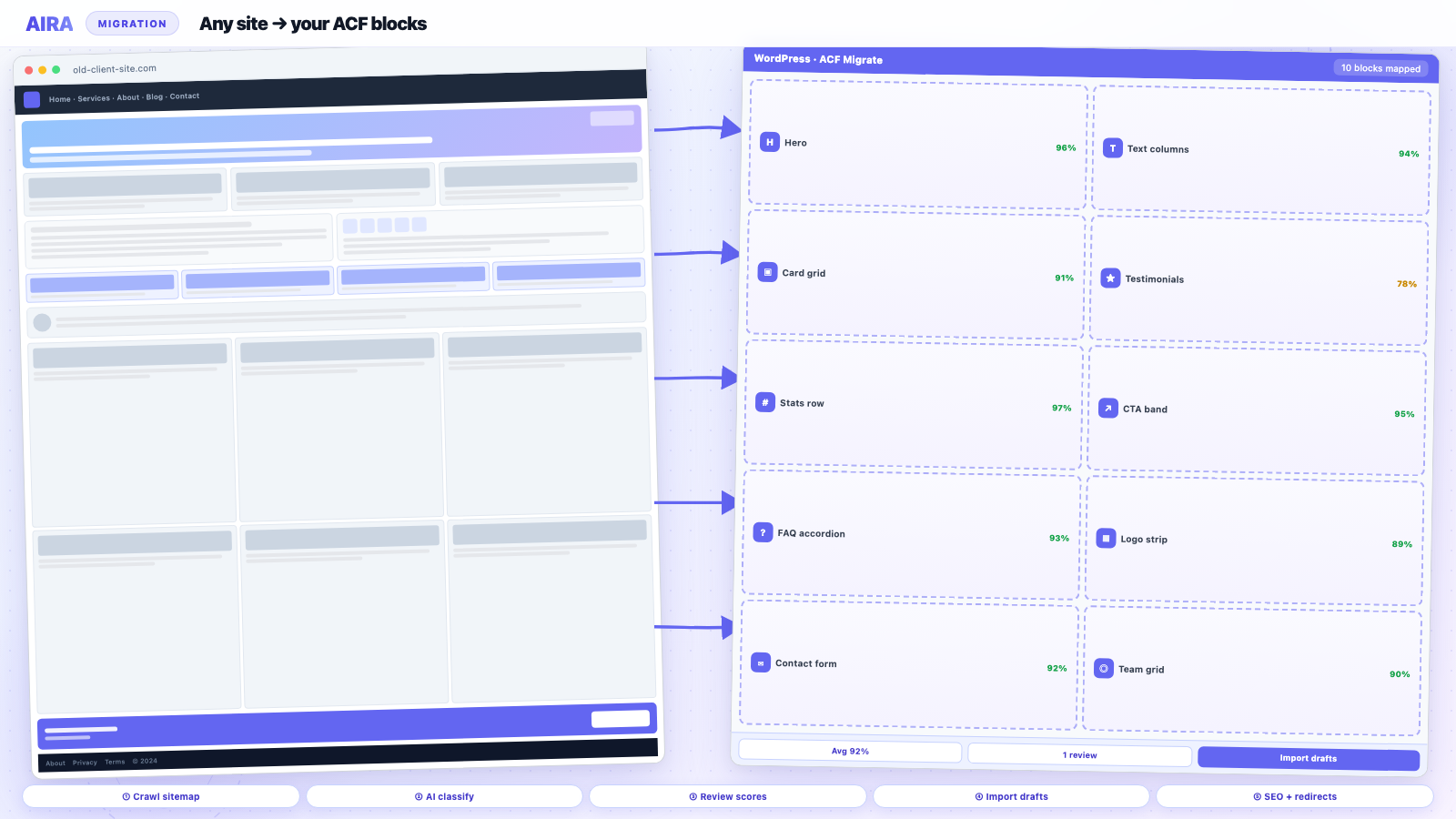
Classic Editor content is one HTML blob per page. Crawl the rendered front-end, classify sections into your ACF block library, strip inline styles and legacy shortcodes, and import as Gutenberg drafts — do not rely on WordPress's bulk convert to blocks.
Thousands of client sites still run the Classic Editor — a single WYSIWYG field with HTML in post_content and maybe a few shortcodes. When you rebuild on Gutenberg with ACF blocks, that blob has to become structured sections: hero, text columns, CTAs, each in the right block with the right fields. Pasting the HTML into a Classic block defeats the purpose.
Classic Editor migrations are one of the most common rebuild types agencies run — and one of the most underestimated. Blog posts are straightforward; marketing pages with layout buried in HTML, theme templates, or shortcodes are where budgets slip. This guide covers what Classic content looks like to a migration, how to handle different site types, and the workflow that scales past copy-paste.
What Classic Editor content looks like to a migration
- arrow_rightHeadings and paragraphs as raw HTML — often with inline styles from the old toolbar.
- arrow_rightImages embedded as <img> tags, sometimes with [caption] shortcodes.
- arrow_rightShortcodes from old plugins ([gallery], [caption], theme-specific tags) mixed through the content.
- arrow_rightNo block structure — one continuous HTML string per page.
- arrow_rightLayout sometimes empty in the editor but rendered from PHP theme templates.
Three Classic Editor site types
| Site type | What post_content looks like | Migration approach |
|---|---|---|
| Simple brochure | HTML headings + paragraphs + images | Classify sections into text/hero/image blocks |
| Shortcode-heavy | [gallery], [caption], theme shortcodes mixed in | Crawl rendered page; [clean shortcodes](/blog/wordpress-shortcodes-cleanup-after-migration) after |
| Empty editor, theme-driven | Blank post_content; layout in PHP templates | Crawl front-end; map visible sections; rebuild template parts |
Blog posts vs marketing pages
Blog posts on Classic Editor sites often migrate fine to core blocks — paragraph, heading, image, quote. Marketing pages are the labour: multi-column layouts, hero bands and CTAs that lived in HTML or theme templates. Do not apply the same migration shortcut to both. Posts can bulk-convert or batch-classify; pages need section-level mapping into your ACF library.
A common agency pattern: migrate marketing pages into ACF blocks for design consistency; leave blog posts as core Gutenberg blocks or a simpler ACF article template. Document which approach applies to which post type so editors know what to expect.
The agency workflow
- 1Register your ACF block library on staging; export field groups as JSON.
- 2Crawl the rendered front-end page — browsers and search engines see structured sections even if the database stores one HTML blob.
- 3Classify each section into your ACF block library using your field-group export as the schema.
- 4Strip inline styles and legacy shortcodes as content lands in clean fields.
- 5Sideload images into the Media Library; rewrite internal links.
- 6Import as drafts; editors review in Gutenberg before publish.
- 7Run migration QA and preserve Yoast metadata.
Theme template pages
Classic Editor sites often relied on theme template parts for layout — a page template with no content in the editor and everything hard-coded in PHP. The Services page might be empty in WordPress admin but fully rendered on the front end. Crawl those pages too; the visible sections still need mapping. Your new theme should use ACF blocks in post_content instead of hard-coded PHP for editable sections.
Shortcodes and legacy markup
Classic sites accumulate shortcodes: [gallery], [contact-form-7], theme-specific layout tags. The rendered front-end page shows what visitors see; the database stores the shortcode soup. Migrate from the rendered output, then audit for shortcode debris after import. See shortcode cleanup after migration. Forms should be rebuilt in Gravity Forms or WPForms on the new site — do not migrate form handlers blindly.
Inline styles and formatting
Classic Editor toolbar encouraged inline font-size, colour and alignment on every paragraph. Strip these during migration — they fight your theme's design system and bloat markup. Content should land in clean ACF fields; styling comes from block templates. If a page relied on inline colour for hierarchy, fix it with proper heading levels and block variants instead.
Editor handover
- 1Train editors on Gutenberg on staging before cutover — even a 30-minute walkthrough reduces panic.
- 2Document which blocks to use for common sections (hero, text, CTA).
- 3Deactivate Classic Editor on the new site only after every page is published in blocks.
- 4Keep a rollback staging clone for two weeks in case a page was missed.
- 5Provide a one-page block guide with screenshots — labelled ACF fields are easier than a blank canvas.
Common Classic Editor migration mistakes
- arrow_rightUsing WordPress bulk 'convert to blocks' for marketing pages — wrong block types, no ACF fields.
- arrow_rightCopy-pasting HTML into a Classic block — no structure, no field-level editing.
- arrow_rightForgetting theme-driven pages with empty post_content.
- arrow_rightLeaving inline styles that break the new design system.
- arrow_rightNot sideloading images — img src still points at old paths.
- arrow_rightSwapping editors on live without staging training.
- arrow_rightSkipping redirect map when permalinks change.
WXR export: why it fails on Classic sites
The WordPress exporter handles Classic Editor HTML, but it does not structure it into ACF blocks. Importing WXR on the new site gives you the same HTML blob in post_content — still not the hero, cards and CTA blocks your theme expects. WXR also struggles with ACF fields, builder-adjacent shortcodes, and absolute URLs. For blog posts, WXR plus bulk convert-to-blocks is a viable shortcut. For marketing pages, it creates more cleanup than it saves.
Bulk strategies by content type
| Content type | Recommended approach | Time per item |
|---|---|---|
| Blog posts (simple HTML) | Bulk convert to core blocks or batch classify | 5–10 min review |
| Blog posts (shortcode-heavy) | Crawl rendered page; classify | 10–15 min review |
| Marketing pages | Section-level crawl-and-map into ACF blocks | 10–20 min review |
| Template-driven pages | Front-end crawl; rebuild template | 30–60 min |
| Landing pages with forms | Crawl + manual form rebuild | 20–40 min |
Disabling Classic Editor safely
On the new build, Gutenberg is default in WordPress 6.x. If Classic Editor plugin is installed for compatibility, remove it only after every page is published in blocks. On the old site, leave Classic Editor active until the migration crawl is complete — you need the front-end rendering, not the editor experience. Document the cutover: 'Classic Editor deactivated on [date]; all pages verified in Gutenberg.'
ACF flexible content legacy sites
Some Classic Editor sites already use ACF flexible content on page templates — editors add layout rows in a meta box while the post editor stays Classic. Migrating flexible content to ACF blocks is a structure change: each flexible layout row becomes a Gutenberg block. See flexible content vs ACF blocks. The crawl source is the same rendered page; only the destination schema differs.
SEO and URL preservation
Classic sites often have stable URLs that have accumulated years of backlinks. Preserve slugs unless there is a deliberate restructure. Migrate Yoast titles and descriptions per page. Classic Editor HTML sometimes buried the only H1 in a styled paragraph — fix heading hierarchy during migration, not after rankings slip.
Review checklist per Classic page
- 1Section count matches rendered page — no dropped content below the fold.
- 2Images sideloaded — no old-domain src in view-source.
- 3Internal links point at staging paths that will become production paths.
- 4Shortcode debris absent — no raw [gallery] or [caption] in block fields.
- 5Forms rebuilt and tested — CF7, Gravity, or WPForms on new site.
- 6Heading hierarchy: one H1, logical H2/H3 nesting.
- 7Mobile preview — Classic inline widths often break responsive layouts.
Mixed editor sites
Some Classic sites have Gutenberg posts and Classic pages — or vice versa. Export a full URL inventory and note which editor built each page. Gutenberg pages on the old site may already be core blocks; they still might not match your ACF library. Crawl everything uniformly — the classifier assigns the right destination block regardless of source editor. Do not assume Gutenberg pages on the old site are migration-complete.
Post-migration monitoring
Classic sites often have the oldest URL structures in your portfolio — high backlink equity, high risk. Run post-launch monitoring for four weeks. Watch Search Console for soft 404s on old blog paths. Crawl staging one final time for broken images the day before cutover.
Quote Classic Editor migrations using per-page review time, not theme-swap time. A site that looks 'simple' in the admin may have forty pages of HTML layout that each need section mapping. Show the client the crawl-and-map maths alongside manual copy-paste — the decision is usually obvious when the numbers are on paper. Classic Editor rebuilds are also an opportunity to fix years of heading hierarchy neglect.
Manual migration is accurate but slow; AI-assisted classification against your ACF export is how teams get a 40-page site reviewed in an afternoon instead of two days. Follow the staging workflow and see how to migrate into ACF blocks for the full pipeline.
Register your block library early — see ACF JSON export explained — so the mapping spec is ready before the first crawl.
Frequently asked questions
Can I bulk-convert Classic Editor posts to Gutenberg automatically?expand_more
WordPress can convert simple HTML to core blocks in bulk, but it will not map content into custom ACF blocks. For structured marketing pages, you need section-level classification against your block library — not a one-click core-block conversion.
Should I remove the Classic Editor plugin before migrating?expand_more
Keep it active on the old site until migration is complete. On the new build, register your ACF blocks and train editors on Gutenberg before deactivating Classic Editor — never swap editors on a live site without staging first.
What about inline styles from the Classic Editor toolbar?expand_more
Strip them during migration — they fight your theme's design system and bloat markup. Content should land in clean ACF fields; styling comes from block templates. Fix hierarchy with proper heading levels and block variants instead.
How do I migrate pages with empty post_content?expand_more
Crawl the rendered front-end URL. Layout likely lives in PHP theme templates. Map visible sections into ACF blocks and rebuild template parts so future edits happen in Gutenberg, not in theme files.
Do Classic Editor blog posts need ACF blocks?expand_more
Not necessarily. Simple posts often work as core Gutenberg blocks. Reserve ACF blocks for designed marketing pages where you need repeatable sections and editor guardrails.
What happens to [gallery] and [caption] shortcodes?expand_more
They stop rendering if the plugins or theme that registered them are gone. Crawl the rendered page to capture the gallery layout, then migrate into a gallery ACF block with sideloaded images.
How long does a Classic Editor migration take?expand_more
Simple brochure sites: one to two days with crawl-and-map. Shortcode-heavy or theme-driven sites: add 30–60 minutes review per complex page. Manual copy-paste is 30–60 minutes per page minimum.
Can AIRA migrate Classic Editor content?expand_more
Yes. AIRA crawls the rendered front-end page — which is what matters for Classic Editor sites — and classifies sections into your ACF blocks. Shortcodes in the database are irrelevant; the visible HTML is the source.
Should I change permalink structure during a Classic Editor rebuild?expand_more
Only if you have a redirect plan. Classic sites often have stable URLs that have accumulated backlinks. If you change structure, build a [redirect map](/blog/wordpress-redirect-map-after-redesign) before launch.
How do I handle custom page templates?expand_more
Map each template's visible sections to ACF blocks. Retire custom templates that only existed to inject PHP layout — replace with a standard page template plus blocks in post_content.

Ryan Hale
Head of Front End Development
Ryan Hale is Head of Front End Development at AIRA, where he leads the team building the engine that migrates WordPress sites into native ACF blocks. He has spent more than a decade building and rebuilding WordPress sites for agencies, with deep, hands-on expertise in Advanced Custom Fields, Gutenberg block development, and large-scale content migrations that protect search rankings. He writes about ACF, moving off page builders like Elementor and Divi, and the practical craft of shipping fast, maintainable WordPress rebuilds.
Reviewed to our editorial guidelines.